Use the AI punch list on a drawing
Attach a request to selected markups, a point, or a region on a drawing. Send the requests together with Ask Deta.
Updated
Find the tool · Right sidebar → AI Chat → Ask Deta · Shortcut Q
Watch the walkthrough
Before you start · Steps · Check your result · Troubleshooting · Related guides
Before you start
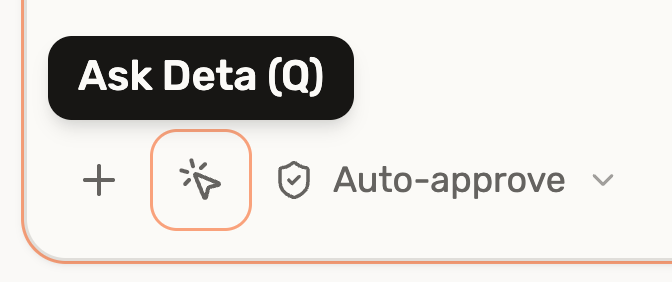
Open a cloud drawing and click AI Chat in the right sidebar. Ask Deta is beside the + at the bottom of the panel. You can also press Q while working on the sheet.
Steps
Attach a note to selected markups
- Choose Select (V) and click a markup. To select several, hold Shift and click each one, or drag a selection box around them.
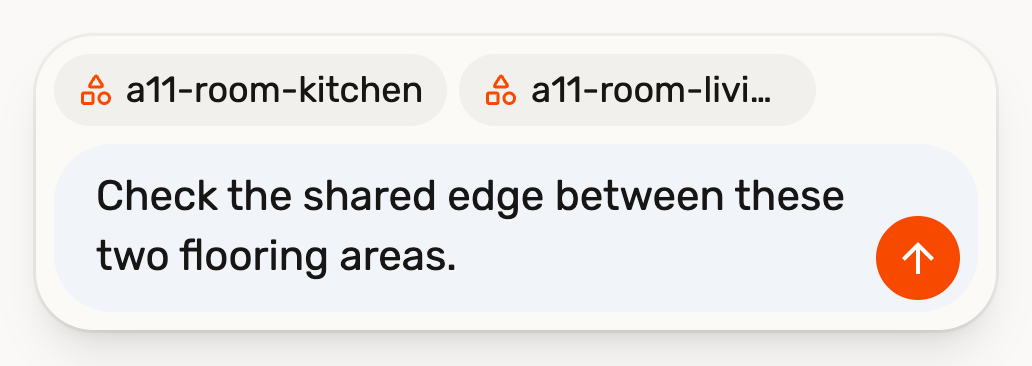
- With the markups selected, press Q or click Ask Deta. One note opens beside the selection. Check the markup names at the top of the note.
- Type the change and press Enter to pin it. For example, select the kitchen and living-room areas together and ask Deta to check their shared edge.
For a single markup, you can also right-click it and choose Ask Deta.
Pin a note directly on the sheet
With the selection cleared, press Q to turn on Ask Deta. Click an existing markup, click an unmarked spot, or drag a box around a region. Type the request and press Enter to pin it.
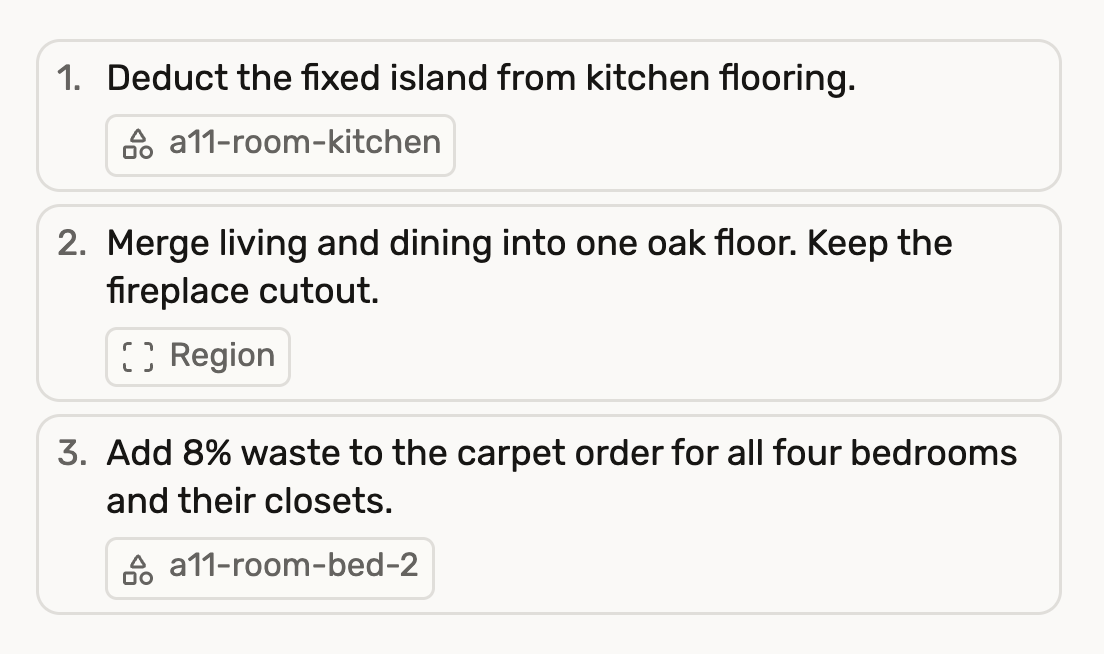
In the video, clicking the kitchen area attaches the island deduction to that markup. Dragging across living and dining gives Deta the region for the oak flooring change.
Send the punch list
Keep pinning notes as you review the drawing. The third note in the video asks Deta to add 8% waste to the carpet order for all four bedrooms and their closets.
Review the numbered notes above the chat box. Remove any you no longer need. You can add a shared instruction in the chat box, such as “Use amber for oak and blue for carpet.” Click Send to submit the punch list as one message.
Check your result
Click a numbered note in your sent message to return to its location. For example, click the kitchen note to inspect the island cutout on the revised plan.
Troubleshooting
The note opens on the wrong markup. Press Esc to close it, clear the selection, then select the markups you want and press Q again. Check their names before saving the note.