How to update a markup's review status
Record a decision, mark work complete, or reopen it. Each status change adds an event to the markup's timeline.
Updated
Find the controls
Markups
Right panel → Markups → expand a row
Watch the walkthrough
Before you start
Open a drawing with a markup or comment you can update. This works with local PDFs and cloud drawings. Save a local PDF after making changes.
Steps
1. Open the markup
- Choose Markups at the top of the right panel—the highlighter icon highlighted below.
- Click the arrow beside a markup to expand its thread. Its status badge is at the right of the row.
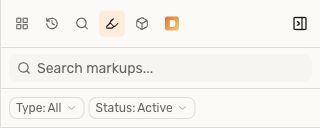
Shown in the cloud viewer. The status and timeline examples below use a local PDF.
2. Record a decision
Click the status badge and choose a status. Use these labels consistently with your team:
| Status | Use it when… |
|---|---|
| Open | The item needs attention or needs to be reopened. |
| Accepted | You agree with the proposed work. |
| Rejected | You do not agree with the proposal. |
| Completed | The work has been carried out. |
| Cancelled | The item is no longer required. |
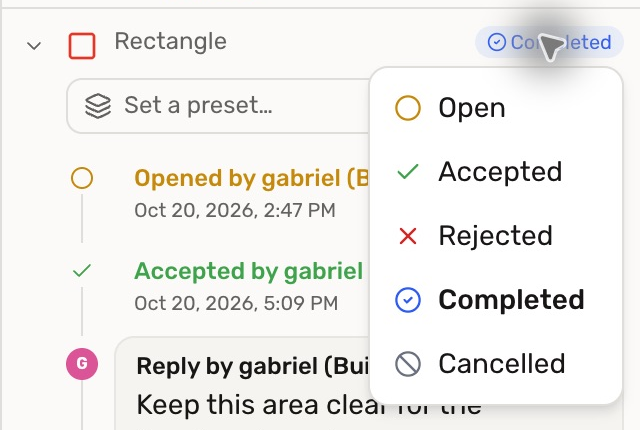
Accepted records agreement; it does not mark the work Completed. Add a Reply… to explain the decision, then press Enter.
Changing a markup row's status also updates its attached comments. To change just one attached comment, use that comment's own status badge.
3. Complete or reopen the item
Choose Completed when the work is done. The default Status: Active filter shows Open, Accepted, and Rejected items, so Completed and Cancelled items leave that list.
To find them again, open the Status filter and include Completed or Cancelled. To reopen an item, choose Open on its badge. Deta adds a Reopened event and keeps the earlier events.
Check your result
The badge shows the current status. The expanded timeline shows the change with its author and date. Changing status records the review decision; it does not edit the underlying PDF drawing.
Troubleshooting
- The row disappeared: include its new status in the Status filter.
- The badge cannot be changed: check that you have permission to annotate this drawing.