How to link tables into a summary
Bring another table’s item rows or total into a summary without copying its values by hand.
Updated
Find the controls
Linked tables
Above the grid → Table actions → Link table…
Before you start
Have a source table and open the table that will receive it. A linked table reads values from its source, so use it to assemble a summary of several takeoffs.
Steps
- Open
 Table actions → Link table…. To insert at a specific row, right-click its item cell and choose Link table here….
 - Browse the workspace, drawing, version, and workbook, then select the source table.
- Set the Heading for this part of the summary.
- Choose Item rows to include the source detail, or Total only for one summary row.
- For item rows, choose Flatten items or Keep section headings under Source sections. Click Insert table.
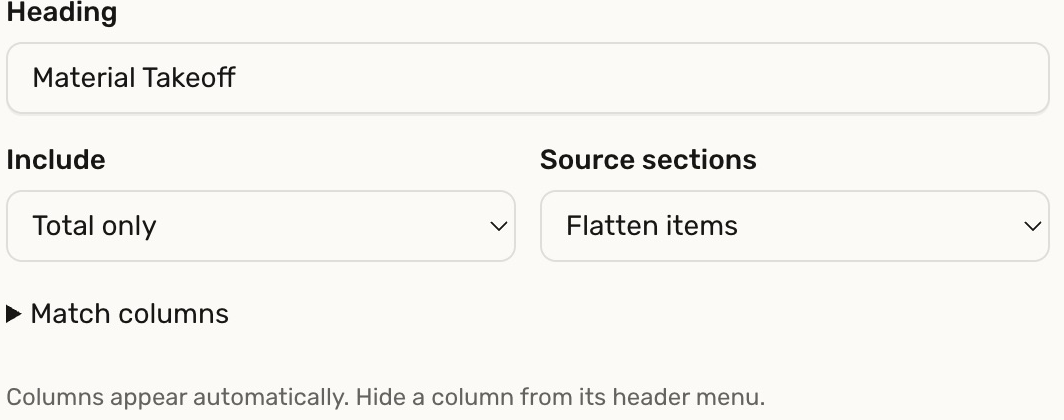
Deta adds the source columns automatically. You can hide an unwanted column from its heading menu.
Check your result
The source appears under the heading you chose. Total only reads the source's Total row; columns that do not total can therefore be blank. Click a linked value to open its source table.
Keep the source and summary live to receive later values. Reload the drawing to refresh a summary that is already open. Freeze the summary when you need a fixed snapshot.
Troubleshooting
- A column is blank with Total only: check whether that source column sums into Total.
- The result is unchanged after a source edit: check that neither table is frozen, then reload the drawing.
- The summary is too detailed: use Total only, or flatten the source sections when including item rows.