Open and merge files in a workspace
Use the large + card to import a PDF into a workspace or combine files into one new document.
Updated
Find the controls
Import a PDF
Workspace file list → large + card
Before you start
Open the destination workspace or folder. To work locally instead, use Open and save a local PDF.
Steps
Open a PDF in the workspace
- Click the large
 Import a PDF card in the file list.

- In Import from, choose where the file is stored.
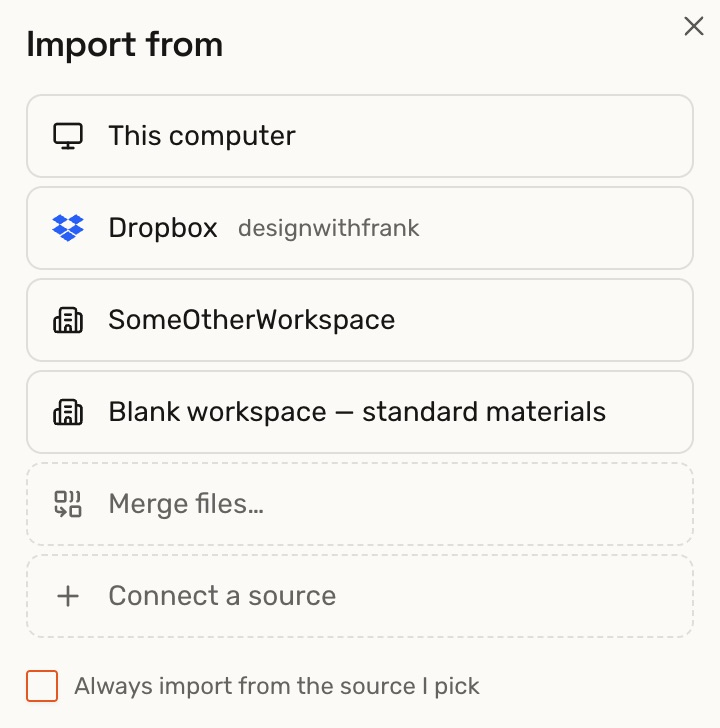
| Choose | What it does |
|---|---|
 This computer, or your connected device This computer, or your connected device | Uploads a PDF into the workspace. The local file stays separate. |
 Dropbox or Dropbox or  Google Drive Google Drive | Imports a PDF from that account and adds the synced drawing to this workspace. |
 Another workspace Another workspace | Copies the document's pages here. Its markups, comments, and history stay in the original workspace. |
- Select the PDF to import. It appears in the workspace’s file list.
If your provider is missing, click Connect a source. Follow Connect Dropbox or Connect Google Drive.
For linked PDFs, see how Deta handles source updates.
Merge files into a new document
- Click Choose source beneath Import a PDF (or From… if a source is already saved), then choose
 Merge files…. You can also choose it in Import from.
 - Choose Add documents from [workspace], Upload from this computer, or More sources, then select PDFs, JPGs, or PNGs. Use Add for more files.
- Leave All pages selected for each file, or open it and choose Custom to select a range of pages.
- Put the files in order using their
 handles or
 arrows.
 - Enter a Document name, then click Create document.
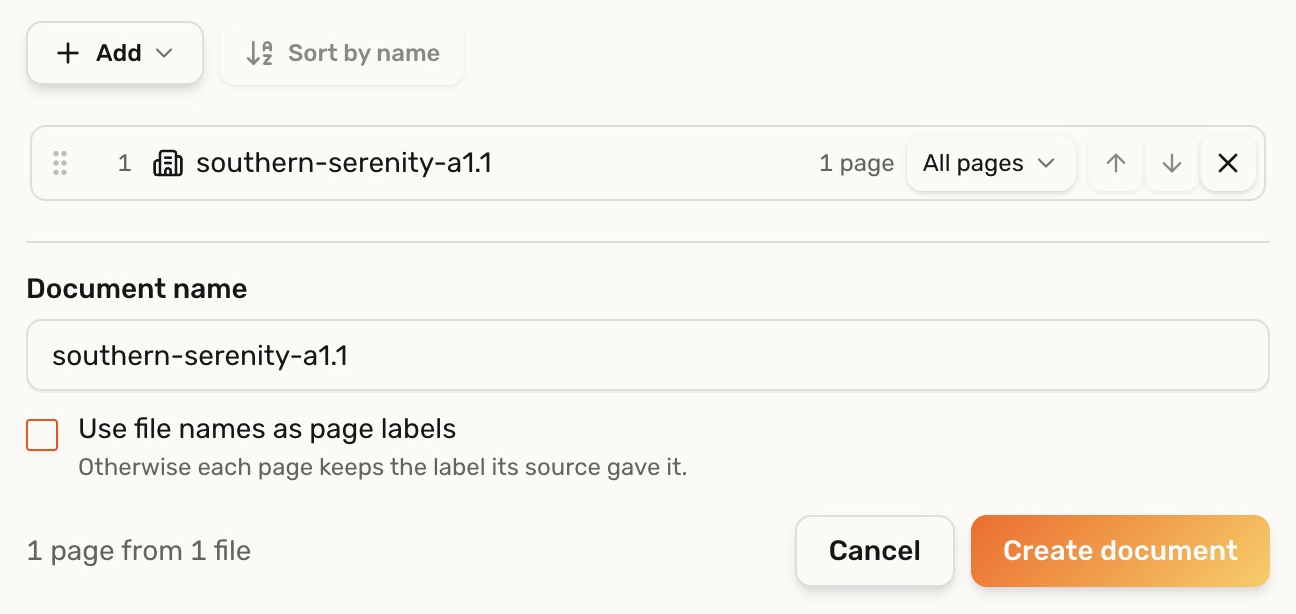
The new document appears in the destination workspace or folder. Originals stay unchanged. Their Deta markups and comments are not copied, and the merged document is not synced to them.
Remember a source
Select Always import from the source I pick in Import from to skip that chooser next time. The source selector beneath the large + lets you switch sources or choose Ask every time.
Troubleshooting
- A synced file is already in another team: a synced drawing can belong to only one workspace. Open it there, or choose that workspace as the source to copy its pages here.
- A file cannot be merged: use a PDF, JPG, or PNG. Remove damaged or password-protected files before creating the document.