How to plan cuts from stock lengths
Pack individual measured pieces into purchased lengths and allow for saw cuts.
Updated
Find the controls
Length cutting
Quantity cell → scissors / Cuts → Cutting settings
Watch the walkthrough
Before you start
Set the page scale, draw the pieces, and use a live length takeoff. Set up stock ordering with the stock length as Coverage and order(Takeoff, Coverage) as Quantity.
Use a separate markup for each physical piece unless you intend to group segments using a shared property.
Steps
- In the Quantity cell, click
 Stock cutting settings. After a plan is saved, the button is labeled Cuts.
 - Under Ordering, choose Pack individual cut lengths.
- Leave Physical piece property blank to treat each member separately. If several segments make one piece, enter the property that gives those segments the same piece identifier.
- Enter Saw cut width in the displayed unit, then click Apply.
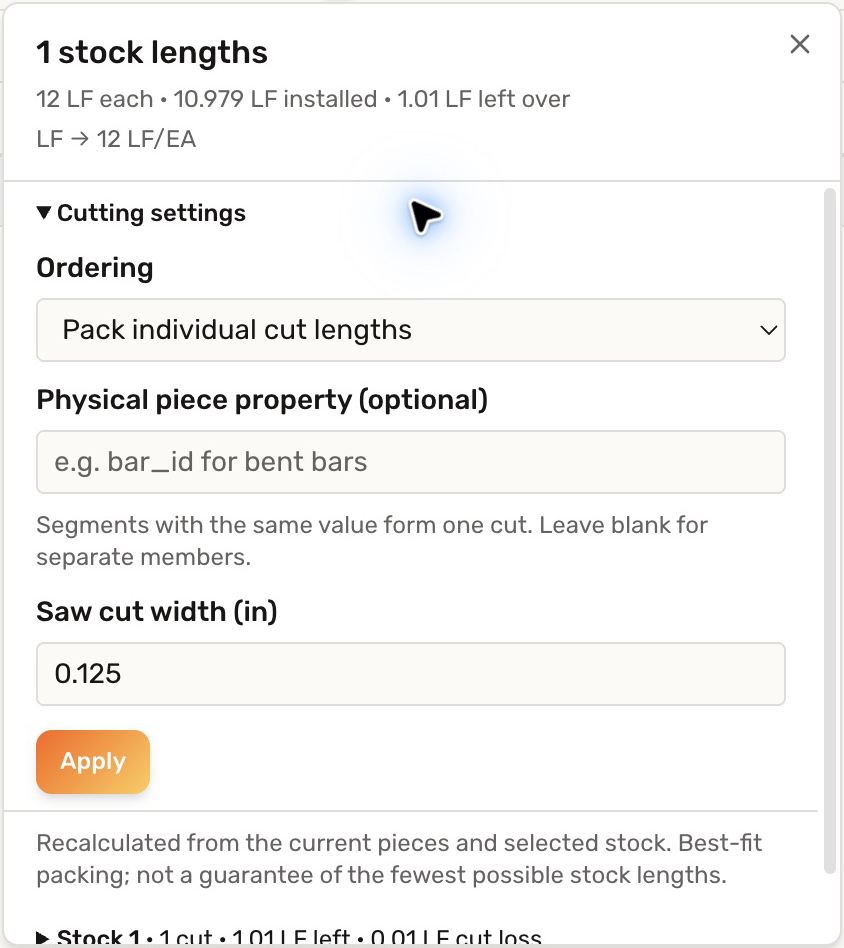
- Open Cuts to inspect the stock lengths, assigned pieces, cut loss, and leftover length. Expand Cutting settings to change the setup.
Check your result
The Quantity cell now counts the stock lengths needed to pack the individual pieces. The plan lists the purchased length and what remains after the pieces and saw cuts.
This is a best-fit plan, not a guarantee of the smallest possible order. A single piece longer than the stock needs a different stock length or modeled joints.
Troubleshooting
- Packing cannot use the takeoff: use a live length takeoff with identifiable pieces. A pinned total alone does not supply individual cut lengths.
- Separate pieces are combined: check the Physical piece property; shared values combine segments into one cut.
- The order is larger than simple rounding: piece sizes and saw cuts can prevent otherwise sufficient total length from being packed.