How to choose table columns
Choose where each table column gets its values and control formatting and totals.
Updated
Find the controls
Table columns
Table → click a column heading or + at the end
Before you start
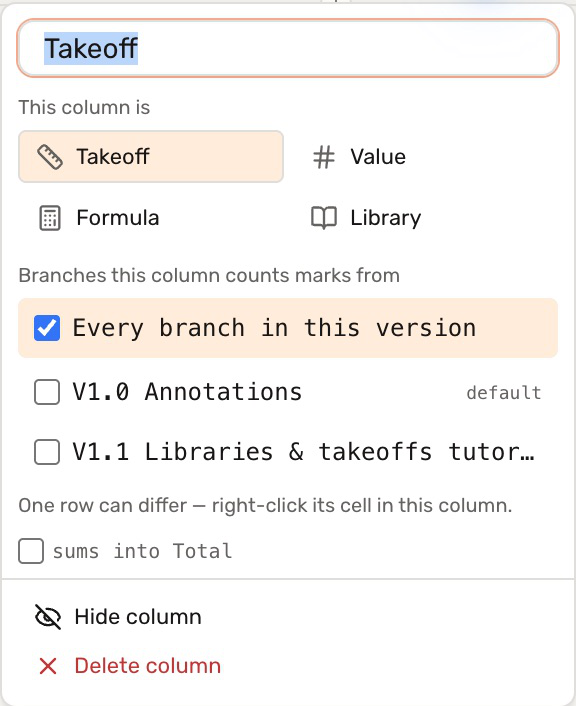
Create a takeoff table. Each column has a type that determines where its values come from.
 Takeoff reads drawing marks, such as
 count(door)orarea(floor). Value holds text or numbers you enter, such as an item name or fixed rate.
 Formula calculates from other columns, such as
 Quantity * Rate. Library reads a field from a selected product, such as unit price or coverage.
Steps
- Click
 at the end of the headings to add a column, or click an existing heading to edit it.
 - Enter its name and choose its type. For Value, choose Text, Number, or Currency. For Formula, enter a calculation using the visible column names. For Library, choose the library and field.
- For a Takeoff column, choose which branches it counts, then enter each row's expression in the grid. See filter quantities.
- Choose whether the column sums into Total. Turn this off for rates, coverage, and quantities that mix different units. Click Add column when creating a new column.
Calculate a cost
- Add Rate as Value → Currency, or link a library price. Turn off sums into Total for this column.
- Add Cost as Formula and enter
Quantity * Rate. Use the column names shown in your table; suggestions help you select them. - Set Cost to Currency and turn on sums into Total.
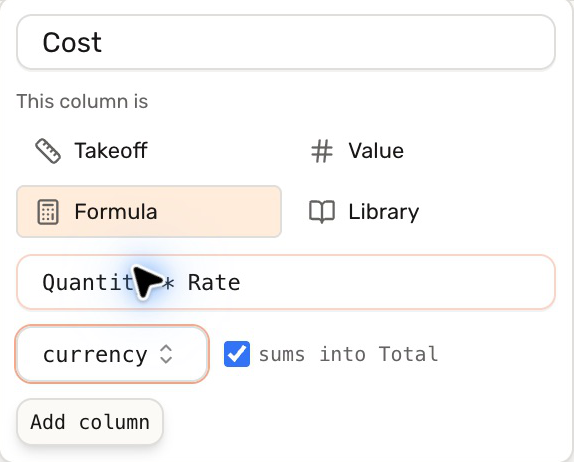
With Quantity 3 and Rate 250, the row's Cost is $750.00. The same formula applies to each row. Blank inputs or division by zero leave the result blank.
Check your result
A Value cell keeps what you enter; a Takeoff cell reads marks; a Formula cell calculates; a Library cell reads the selected product. Only columns set to sum contribute to section subtotals and the Total row.
Troubleshooting
- Formula is unavailable: add another column first so there is something to calculate from.
- A calculated cell stays fixed: a typed number can override its calculated value. Clear the override or restore the takeoff expression to resume calculation.