How to link a table row to a library product
Choose a product once to fill its price, coverage, and other library columns in a table row.
Updated
Find the controls
Library columns
Table → column heading → Library
Watch the walkthrough
Before you start
Have a product library in the workspace and a table with an item row. This example links a material's Unit price and Coverage.
Steps
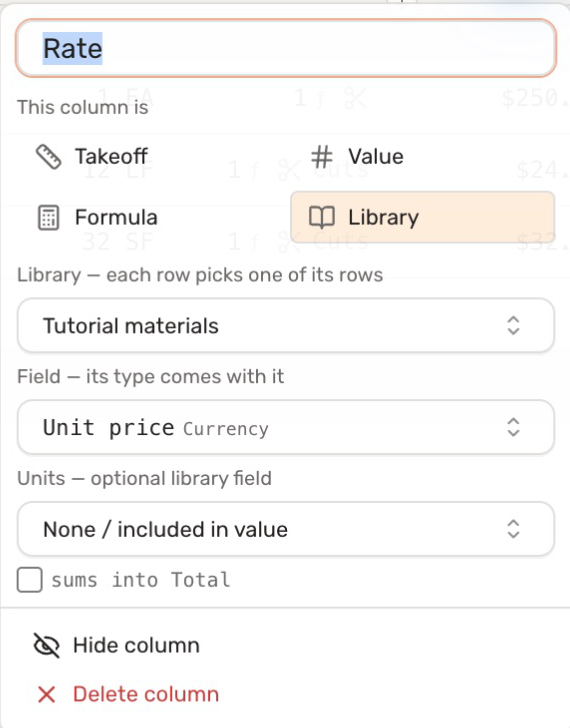
- Add a column or click an existing column heading. Name it Rate, then choose
 Library.
 - Select the library, then its Unit price field. The field's format comes with it, so a currency field displays as currency in the table.
- Add another Library column named Coverage, select the same library, and choose its Coverage field. If units are stored separately, choose that field under Units.
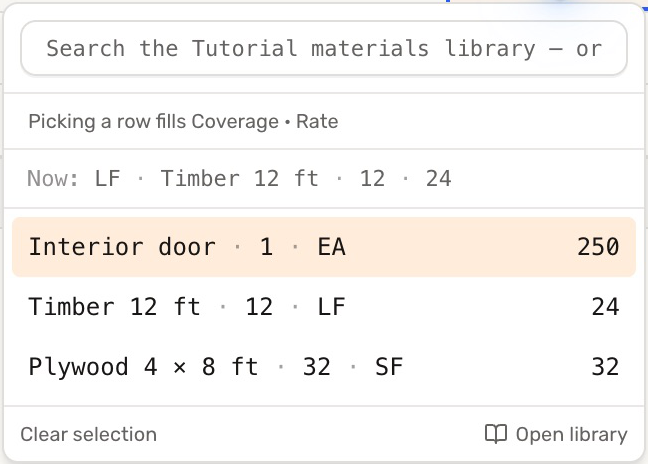
- Double-click a Library cell in an item row. Search for and select the product. Picking one row fills all columns connected to that library on the same table row.
Check your result
Selecting Timber 12 ft fills 12 LF of coverage and a $24 rate. The table keeps a link to that product; it does not require a separate product selection for every field.
Use those values in cost calculations or stock ordering. Reopen a table after library edits to read the current values.
Troubleshooting
- A typed price remains after selecting a product: open the cell, choose Clear selection, then choose the product again to remove the manual override.
- Coverage has no units: select the library's unit field, or include units in the stored value.
- Nothing updates: check whether the table is frozen.