Create a workspace and add members
Create a workspace, invite teammates, and manage their access.
Updated
Find the controls
Workspaces
Sidebar → Workspaces → choose a workspace
Create a workspace
- In the sidebar, hover over
 Workspaces and click
  (Create team).
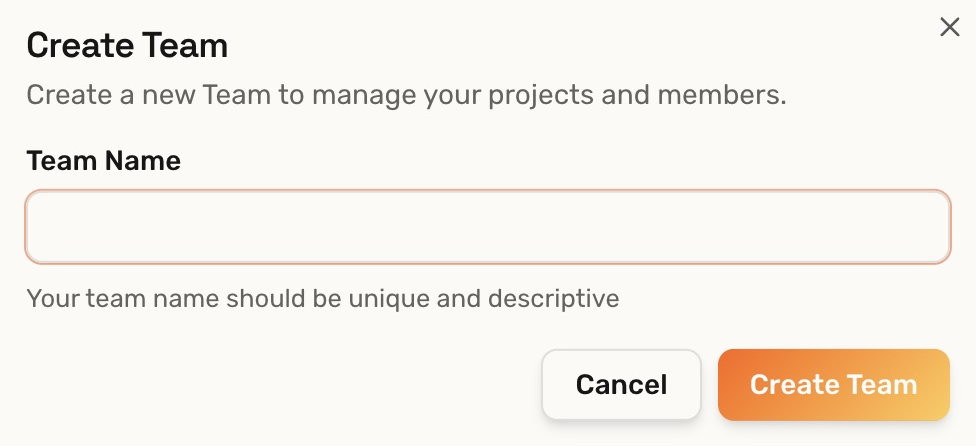
 - Enter a Team Name, then click Create Team.
The workspace opens. Use its large card to open or merge files.
Invite members
- Open the
 menu beside the workspace and choose Members.
 - Click Invite Members and enter an email address.
- Choose Member for a teammate or Owner to also allow workspace administration.
- Click Send Invites. The recipient follows the invitation to sign in and join.
Members can access all files in the workspace, including files in its folders. To share only one file, use Share a drawing.
Manage access
On Members, open the person's  menu to Update Role or Remove from Account.
Under Pending Invites, open an invitation's menu to change its role (Update Invitation), renew it if expired (Renew Invitation), or cancel it (Remove Invitation).
Removing a member does not revoke any separate drawing share.
Troubleshooting
- Invite Members is unavailable: ask a workspace owner to invite the person.
- Limit reached: check your plan's workspace or member allowance. Pending invitations count toward the member limit.