How to compare two local PDFs
Choose a second PDF from your computer and inspect changes with Peek or Split in the desktop app.
Updated
Find the controls
Compare
Local PDF viewer header → Compare
Before you start
Use the Deta desktop app and have both PDFs on your computer. Open the newer file through This device → Open a PDF. The comparison runs on your device; you do not need to upload the files to a workspace.
Steps
1. Choose the other PDF
Click Compare in the viewer header. Choose the earlier PDF in the file picker, then click Open.

The comparison panel opens automatically. Check the filename after the arrow: it should be the second PDF you selected. The file you opened first remains the current drawing.
2. Find a change
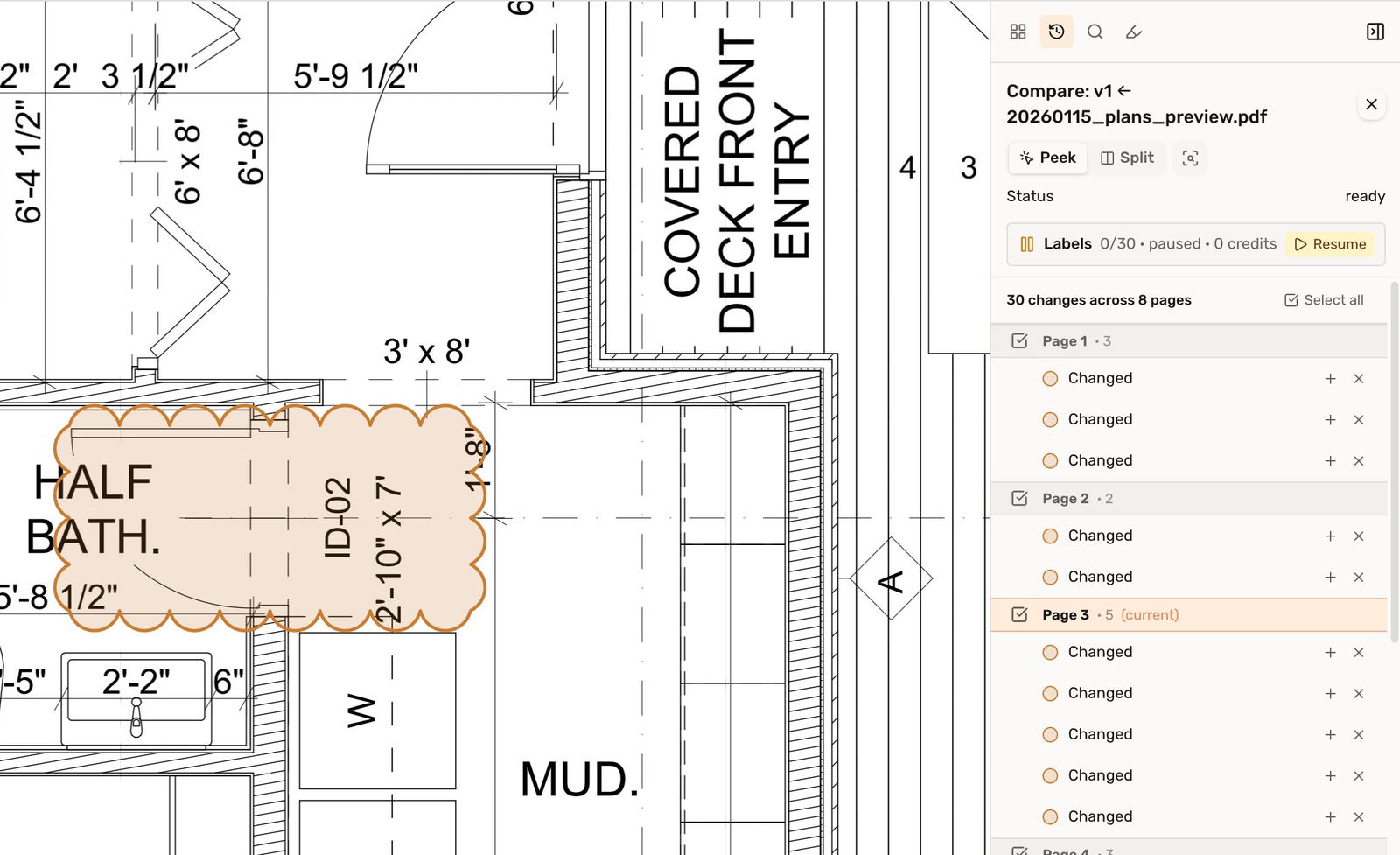
Wait for Status ready. Click a page heading to visit that page, then a change row to zoom to its detail. Orange clouds outline the differences.
3. Look at both files
- Peek: hover over a change cloud to reveal the second PDF. Move away to return to the current drawing.
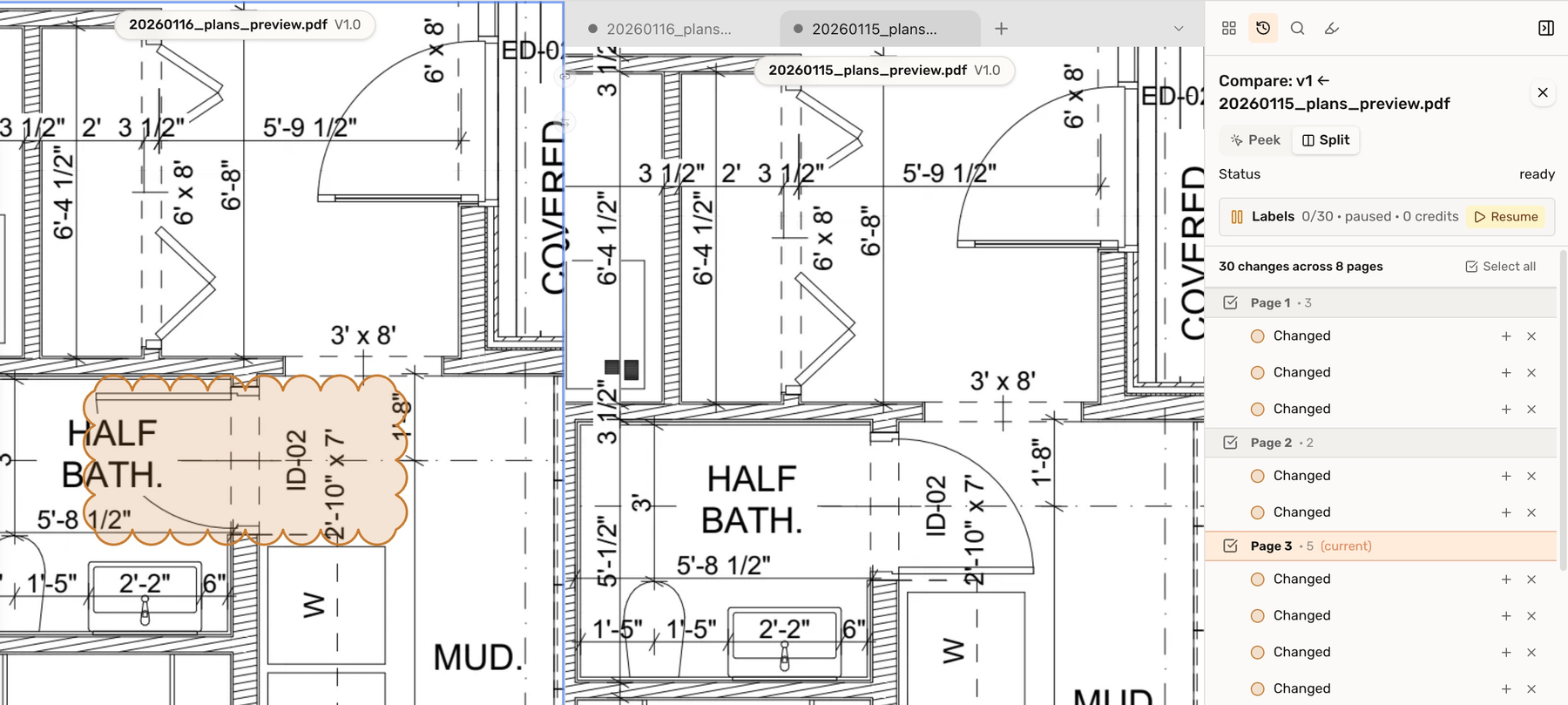
- Split: show both files side by side. Check the filenames above the panes, then click a change row to inspect the same detail in both.
- Magnifier: reveal the second PDF under your pointer, or hold Space temporarily.
4. Finish comparing
Click Stop compare in the header. To compare a different pair, click Compare again and choose another file.
Comparison results belong to the current session. If you add markups you want to keep, save the local PDF.
Check your result
Use the same detail in both PDFs to confirm what changed. In this example, the half-bath door swings in opposite directions.
Troubleshooting
- No Compare button: open the PDF through This device in the desktop app. Cloud drawings use the Versions panel instead.
- Rows only say “Changed”: you can still inspect the outlined differences with Peek or Split.
- Wrong comparison file: click Stop compare, then select the correct PDF.