Snapping and selection measurements on a PDF
Snap to PDF linework or markups, then inspect the length, area, perimeter, or circumference of shapes in Deta.
Updated
Use Snapping to place points accurately. Turn on Measure mode in the same menu to see dimensions and a popover with the measurements of selected markups.
Start here
- Trace a PDF and snap markups together — follow drawing lines or connect a point to another markup.
- Read selection measurements — read length, perimeter, circumference, and area for one shape or a selection.
Find the controls
Open the  options arrow in the bottom viewer bar.
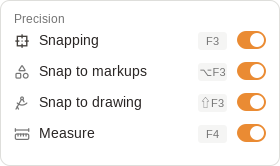
| Control | What it does |
|---|---|
| Snapping | Enables snapping while drawing or editing. |
| Snap to markups | Targets points and edges of Deta markups. |
| Snap to drawing | Targets the PDF’s vector linework. |
| Measure | Shows dimensions and a popover with cumulative selection measurements. |
The main  button turns Snapping and Measure on together when both are off; if either is on, it turns both off. Use the options menu to control them separately.
Before measuring
Set the page scale for real-world measurements. Snapping alone does not need a scale. Set display units and rounding in Drawing Units.
Snapping to a PDF line does not turn it into a selectable markup. To read its length or area, draw a shape over it or use the measurement tools. For selecting, moving, and resizing annotations, see Select and edit markups.
How to trace a PDF and snap markups together
Trace PDF drawing lines with a polyline, then snap new or existing markup points to other shapes in Deta.
How to read measurements for selected markups
Use Measure mode in Deta’s snapping controls to show a popover with the cumulative length and area of selected markups, including perimeter and circumference.