How to export or print a table
Download table values as CSV, or create a formatted printout or PDF with a reusable layout.
Updated
Find the controls
Export and print a table
Above the grid → Table actions → Download CSV or Print…
Watch the walkthrough
Before you start
Open the table you want to export. Use CSV for spreadsheet values or Print… for a formatted document, including a PDF.
Steps
Download spreadsheet values
- Open
 Table actions above the grid.
 - Choose Download CSV. Open the downloaded file in your spreadsheet app.
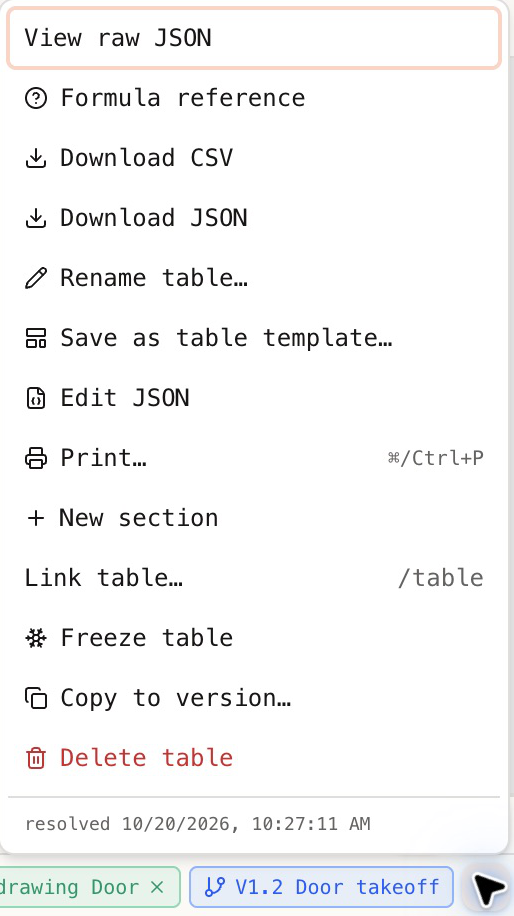
CSV contains the current values. It does not keep live links to drawing marks or library products. Download JSON is also available in the same menu.
Print or save a PDF
- In Table actions, choose
 Print….
 - Select a saved Layout, or use Custom layout.
- Under Document, enter the title, company and logo, recipient, project, and any document details or notes you need. Blank fields are omitted.
- Under Page, choose the paper size and orientation. You can add line numbers, page numbers, and start selected sections on a new page.
- Click Print / Save PDF. In the browser's print dialog, choose a printer or Save as PDF.
Column widths follow the table. To change their proportions, close the dialog and drag the column edges in the grid.
Reuse a print layout
Click Save layout (or Save changes) to keep the table's settings. Save as new template… saves the layout, branding, and columns together as a table template. Customer details and document dates are filled in for each estimate.
Check your result
The CSV contains the table's current values. The print preview shows its rows with your chosen document details and page settings.
Troubleshooting
- Printed columns are too narrow: widen them in the table or use Landscape.
- Page numbers appear twice: turn off the browser's headers and footers. Deta's page numbering requires Chrome or Edge.
- The downloaded file does not update: exports are snapshots. Export again after changing the table.