Upload a new PDF version
Add a revised PDF to an existing cloud drawing while keeping its earlier versions and their markup branches.
Updated
Find the controls
Versions
Viewer → Versions in the right panel, or click the version label above the drawing
Before you start
Open the existing drawing and have the revised PDF ready on your computer.
For a drawing connected to Dropbox or Google Drive, update the PDF in that source instead. See Understand synchronization.
Steps
- Click
 Versions in the right panel of the drawing viewer.
 - Click
 Upload new version at the top of the panel.
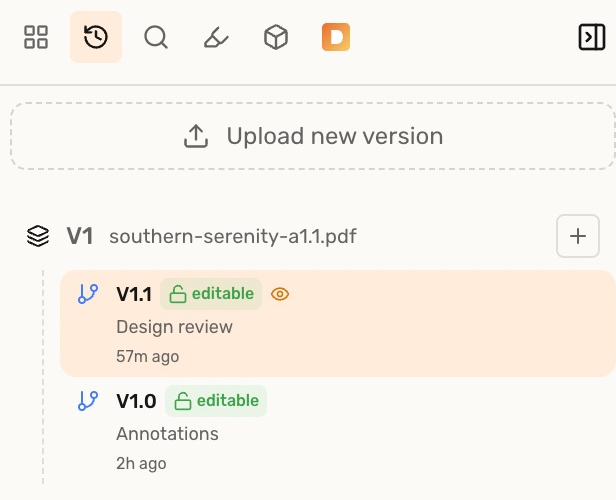
- Select the revised PDF in your computer's file picker and open it. You can also drag the PDF onto Upload new version.
- When processing finishes, Deta opens the next version—for example, V2 after V1.
Continue a review on the new version
Earlier versions and their branches remain in the tree. Select one to return to it, or copy a branch to the new version to continue that review on the revised PDF.
Troubleshooting
- Upload new version is missing: connected Dropbox and Google Drive drawings receive revisions through their source. On a directly uploaded drawing, this control requires Editor access.
- The control is unavailable: reconnect if you are offline, or finish the active site visit before uploading a revision.