How to create your first takeoff table
Create a table in the version tree and count your markups with a live takeoff formula.
Updated
Find the controls
Tables
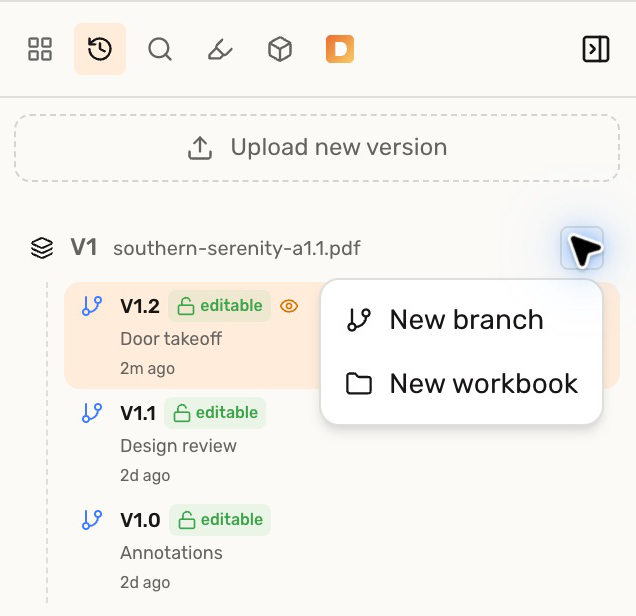
Right panel → Versions → + beside the version → New workbook
Before you start
Open a cloud drawing in a workspace. For this example, use the Point tool to mark three doors with a Door preset.
Counting needs no scale. For length, area, or volume takeoffs, set the page scale first.
Steps
- Open
 Versions on the right. Click
  beside the drawing version, then
  New workbook. A workbook and its first table appear in the tree.
 - Open the
 Table beneath the workbook. It opens below the drawing.
- Click Add a column, name it Item, choose Value with Text format, and click Add column.
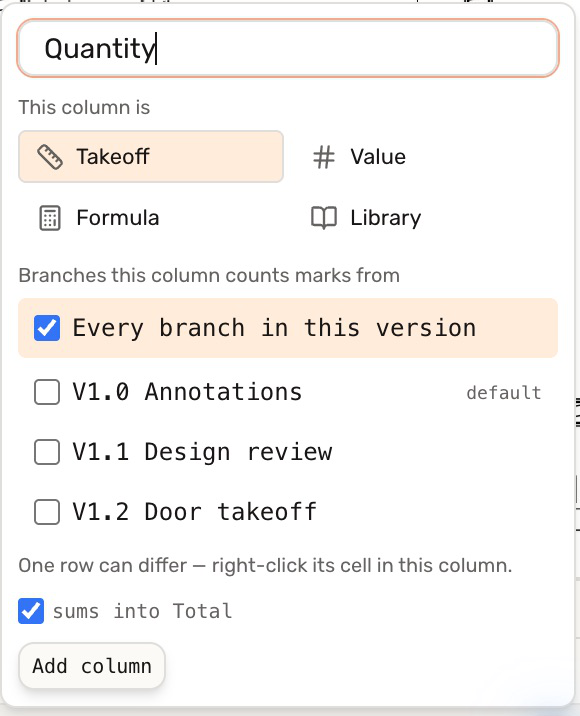
- Click at the end of the headings. Name the next column Quantity, choose Takeoff, and click Add column.
- In the empty row, enter Doors under Item. Double-click its Quantity cell, type
count(door), and press Enter. - Open the
 branch selector above the table. Choose the branch containing your Door marks. See filter quantities for page and branch choices.
 - Open
 Table actions above the table and choose Rename table… to call it Door Schedule.
Check your result
The row shows 3 EA for three matching Door marks. Adding another Door to the included branch updates the quantity to 4 EA.
The numbers displayed on Point marks run per page, independently of their presets and tags. The table counts matching Door marks; it does not use those displayed numbers.
For the four column types and their settings, see Choose table columns.
Troubleshooting
- The count is zero: check that the marks use the Door preset and that their branch is included.
- The number no longer follows the drawing: a typed number pins the cell. Enter
count(door)again to restore the live takeoff.