How to adopt or dismiss comparison changes
Keep a change as markup, dismiss it, or undo a review decision.
Updated
Find the controls
Compare versions
Versions → Compare now
Before you start
Compare the PDFs and inspect a change. Use an editable branch in your cloud drawing to add markups. Review decisions do not alter either PDF.
Steps
1. Adopt a change
Click + on its row. Deta adds a red revision cloud and marks the row Adopted. The cloud is automatically linked to that result.
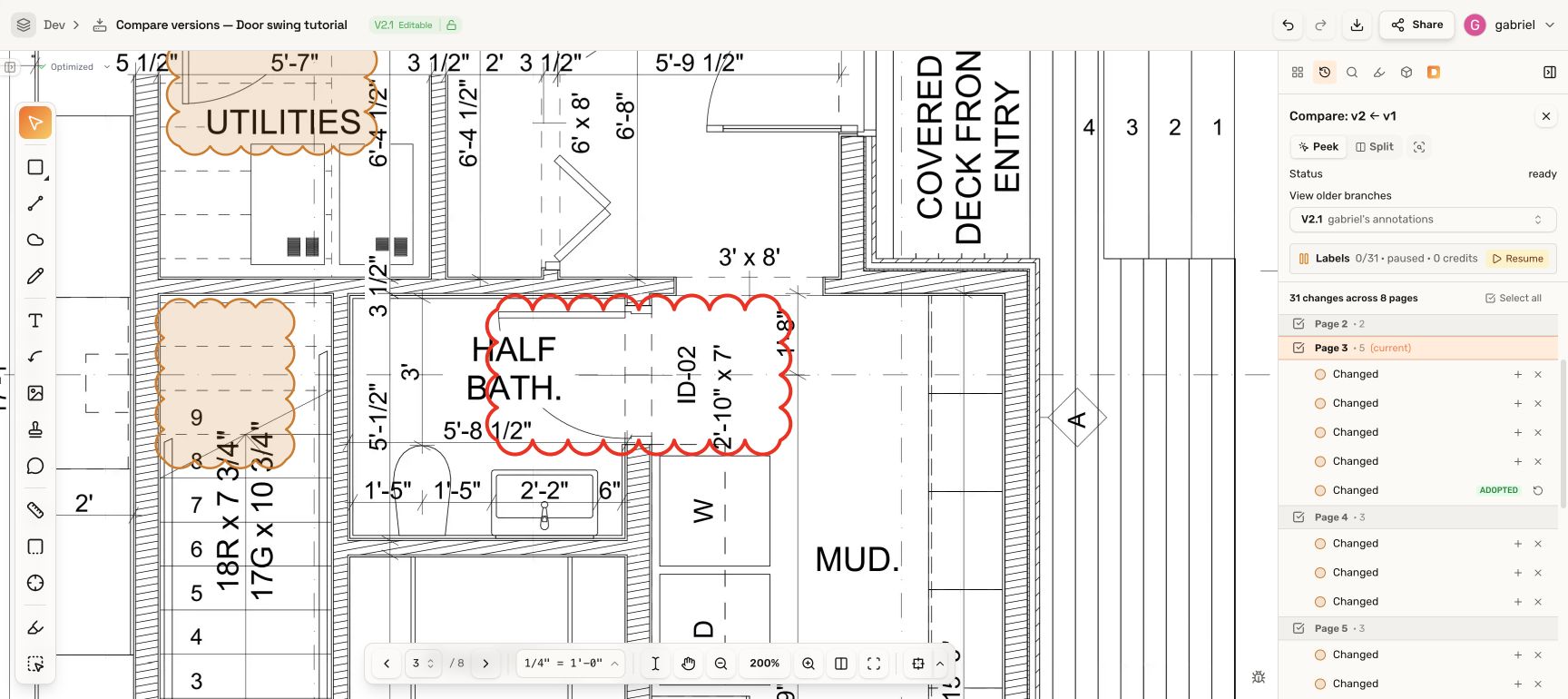
2. Dismiss a change
Click × on the change row to skip it. The row fades and is crossed out; its comparison cloud disappears. The row remains available if you change your mind.
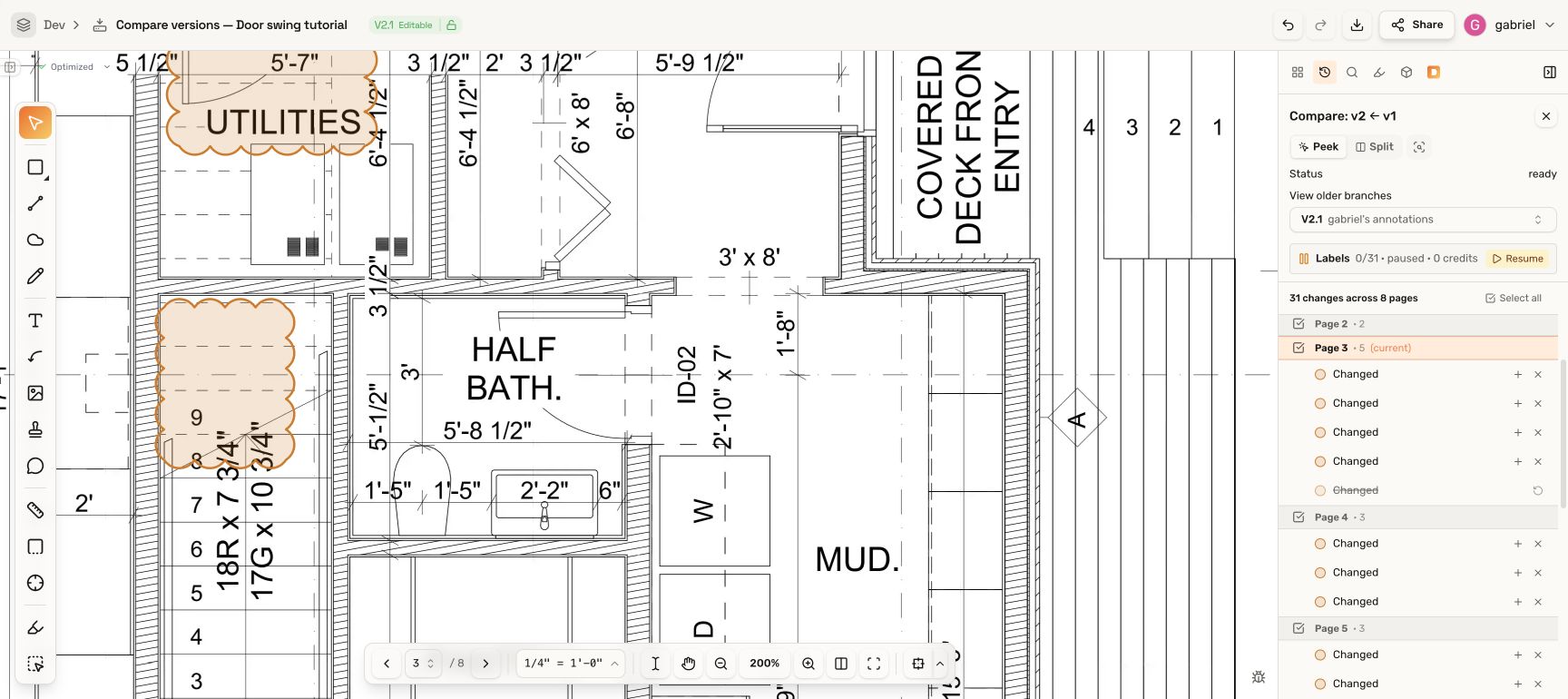
3. Undo a decision
Click the row’s curved restore arrow:
- On a dismissed row, it brings the change back for review.
- On an adopted row, it deletes the linked markup and brings the change back for review.
To keep the markup but disconnect it from the result, use Unlink.
Review several changes
Select rows using their checkboxes, then choose Adopt, Dismiss, or Restore in the selection toolbar. Check the selected count before applying an action.
To combine related regions on one page, select at least two unreviewed results and choose Merge, then adopt the combined result. Split merged region separates it again before adoption.
Troubleshooting
- Cannot adopt: return to your own editable branch if you are previewing an older branch’s markups.
- Restored the wrong result: use Ctrl+Z on Windows or Cmd+Z on Mac.
- Need to move or restyle the cloud: continue to Edit an adopted cloud.