How to reduce an exported PDF’s file size
Reduce the size of scanned drawings and image-heavy PDFs when exporting a copy.
Updated
Find the controls
Compress images
Export / Print → options beside Export PDF → Compress images
Watch the walkthrough
Before you start
Compression reduces images in the exported PDF. It leaves the working document unchanged and does not turn vector linework or text into an image.
Steps
- Open
 Export / Print, then the
  chevron beside Export PDF.
 - Under Compress images, choose Light, Medium, or Strong. Light keeps more image detail; Strong makes a smaller copy with lower image quality. Off leaves image compression disabled.
- Read the size estimate, then click
 Export PDF.
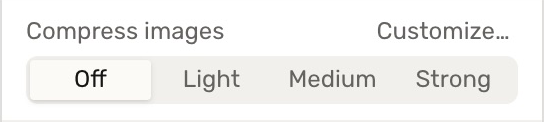
Customize compression
Click Customize… to set Max DPI, Format, and Quality separately for color, grayscale, and black-and-white images. You can also convert color images to grayscale or remove metadata, thumbnails, and private app data from the exported copy.
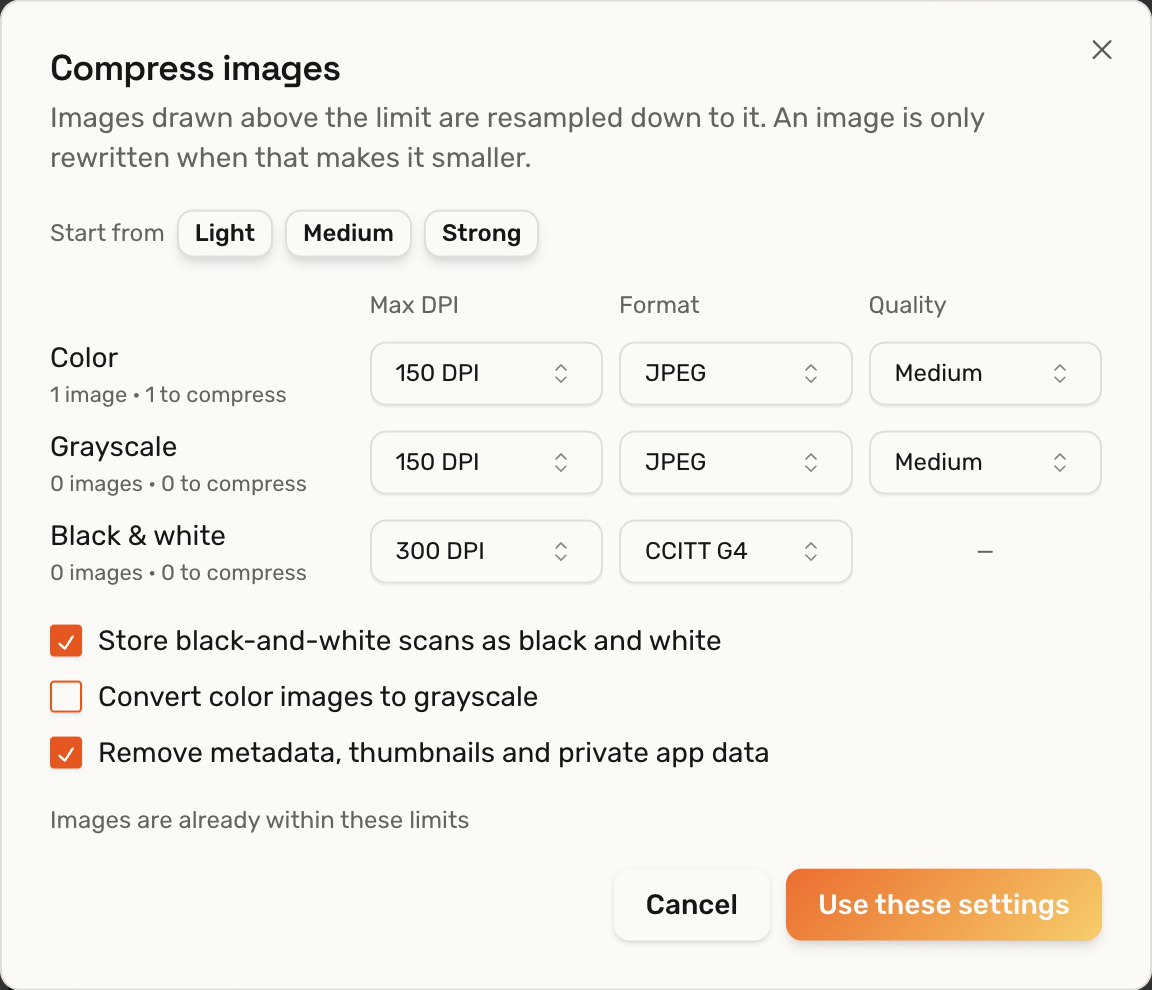
Click Use these settings, then reopen Export / Print and click Export PDF. Applying the settings does not itself download a file.
Check your result
Open the downloaded copy at the size you will use it. If small text in a scan has lost detail, export again with Light or a higher Max DPI. The size estimate is approximate.
Troubleshooting
- Little or no reduction: a PDF made mostly of vector linework, or images already within the selected limits, may not shrink much.
- The estimate is unavailable: you can still export. Deta reports the compression result after export.