Understand the version tree
A version is a revision of the PDF. A branch is a separate set of markups on that version.
Updated
Find the controls
Versions
Viewer → Versions in the right panel, or click the version label above the drawing
Open Versions
Click  Versions on the right side of the viewer, highlighted below.
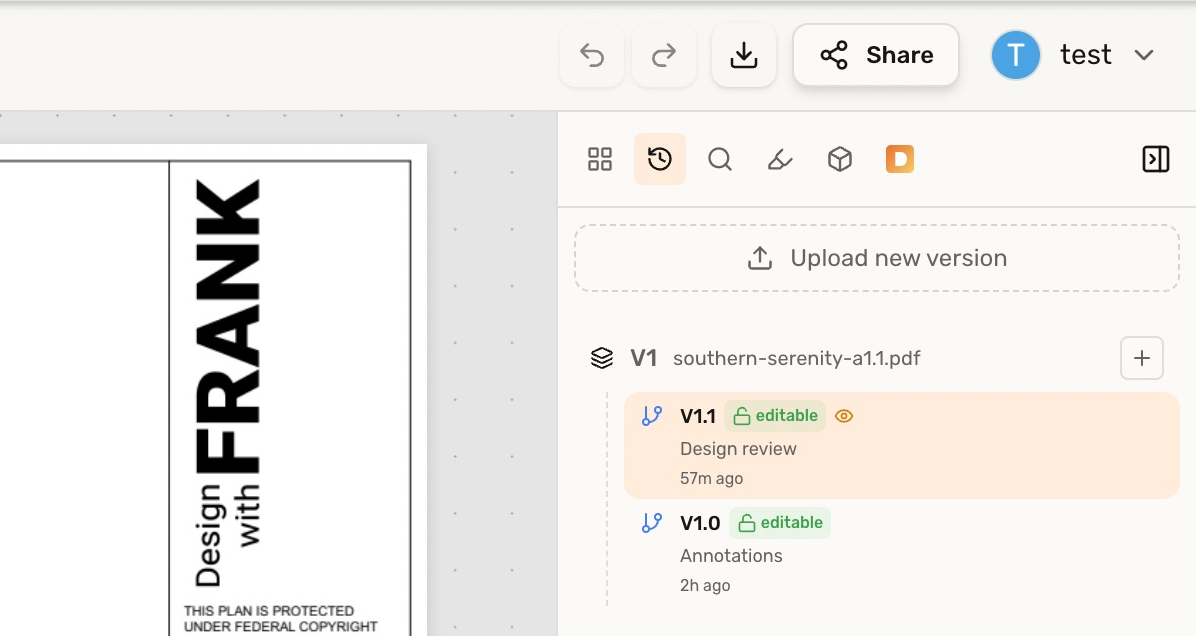
You can also click the version label beside the drawing’s name, such as V1.1.
Versions and branches
| In the tree | What it represents |
|---|---|
 V1, V2 V1, V2 | Different revisions of the PDF. |
 V1.0, V1.1 V1.0, V1.1 | Different markup branches within V1. Each branch can also have a descriptive name. |
 Synced layer Synced layer | The latest state read from a connected Dropbox or Google Drive PDF. |
For example, V1 can have separate Design review and Site review branches. When you upload V2, those branches stay on V1. Copy a branch to V2 to continue its review on the revision.
A branch separates markups. Editing the PDF's text or rearranging its pages affects the other branches on that version too.
Find the state you are viewing
Select a branch to view its markups. The  eye marks your selection; a
  lock marks a locked branch.
Connected files and uploaded files
Connected drawings show a  Dropbox or
  Google Drive logo and a Synced layer. See Synchronization for source updates and editing this layer.
A directly uploaded PDF starts with a working branch and has no synced layer.