How to freeze a table snapshot
Keep a fixed table result, then unfreeze it when you want to resume updates.
Updated
Find the controls
Freeze table
Table actions → Freeze table
Before you start
Open the table you want to preserve and finish its calculations. Freeze keeps the table's current result and stops it from syncing. This is useful when retaining a reviewed estimate while the drawing or product data continues to change.
Steps
- Open
 Table actions above the grid.
 - Click
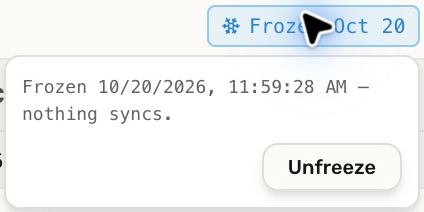
 Freeze table. The table becomes read-only and shows Frozen with a date.
 - To resume updating, click the Frozen date, then Unfreeze.
Check your result
While frozen, the table keeps its captured values rather than following drawing, library, or linked-table changes. Unfreezing makes it editable again and resumes calculation from its sources.
Freezing a table does not lock the drawing branch. If you need a reusable column setup rather than a fixed project result, save a table template.
Troubleshooting
- Cells cannot be edited: click the Frozen date and choose Unfreeze.
- New markups or prices are not reflected: a frozen table deliberately stops syncing. Unfreeze it to read the current sources.
- The result changed after unfreezing: the source data changed since the snapshot. Keep a table frozen when its old values are the result you need to retain.