How to create and reuse markup presets
Give repeated markups a shared name, style, and fields. Save a preset library to reuse them in another drawing.
Updated
Find the controls
Markup presets
Properties bar → Preset
Before you start
Open an editable drawing in a workspace or a local file in the desktop app. A preset identifies a kind of markup, such as Door or Wall, and gives it reusable settings. A library groups presets for use in other files.
Steps
Create and apply a preset
- Choose a markup tool, or select an existing markup. Set the appearance you want to reuse.
- Open
 Preset at the left of the properties bar. It shows No preset until one is assigned.
 - Type a name, such as Door, into Search or create…, then choose Create “Door”.
- Draw with that preset selected. To apply it to an existing markup, select the markup and choose Door from the same list.
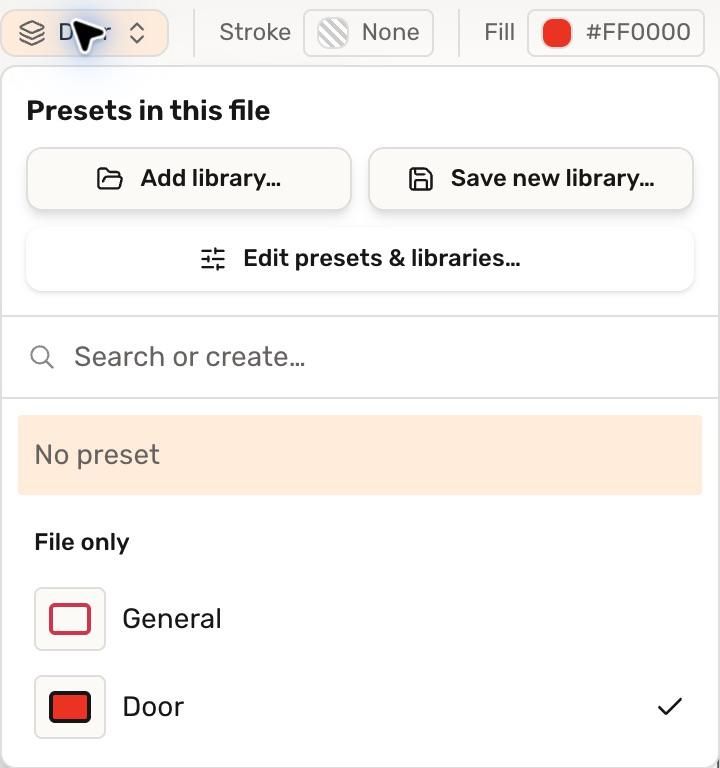
Choose No preset when you want to draw without assigning one. For room names, ratings, or other data, add fields to the preset.
Reuse presets in another drawing
Save the file's presets and fields as a library, then add that library to another drawing. Follow Reuse preset libraries for saving, adding, and updating a collection.
Check your result
Select one of your markups: the properties bar shows Door. It can now be counted with count(door) in a takeoff table.
Troubleshooting
- The library is missing: choose the workspace where it was saved in Add library….
- Only one markup changed: selecting a preset on an existing markup changes that selection. Choose it with a drawing tool active to use it for new marks.