How to print a drawing
Choose pages, paper, and scale before printing. Use Actual size to preserve the PDF’s printed scale.
Updated
Find the controls
Print⌘P / Ctrl+P
Viewer header → Export / Print → Print
Watch the walkthrough
Before you start
Open the drawing or cloud branch you want to print. Actual size (100%) preserves the PDF’s physical size. Fit to page resizes it to the paper and changes its printed scale.
Steps
Choose what to print
- Open
 Export / Print in the viewer header.
 - If needed, open the
 chevron beside Print to include or omit Markups, Comments, and Attachments. Print settings are separate from PDF export settings.
 - Click
 Print. You can also press ⌘P on Mac or Ctrl+P on Windows while the drawing is focused.
In the desktop app
- Choose a printer under Destination and set Copies.
- Under Pages, choose Current page, All pages, or Custom range.
- Choose Paper. Match the drawing uses the drawing’s sheet size; choose a fixed paper size to set Paper orientation yourself.
- Choose Actual size (100%) or Fit to page under Scale, then click Print.
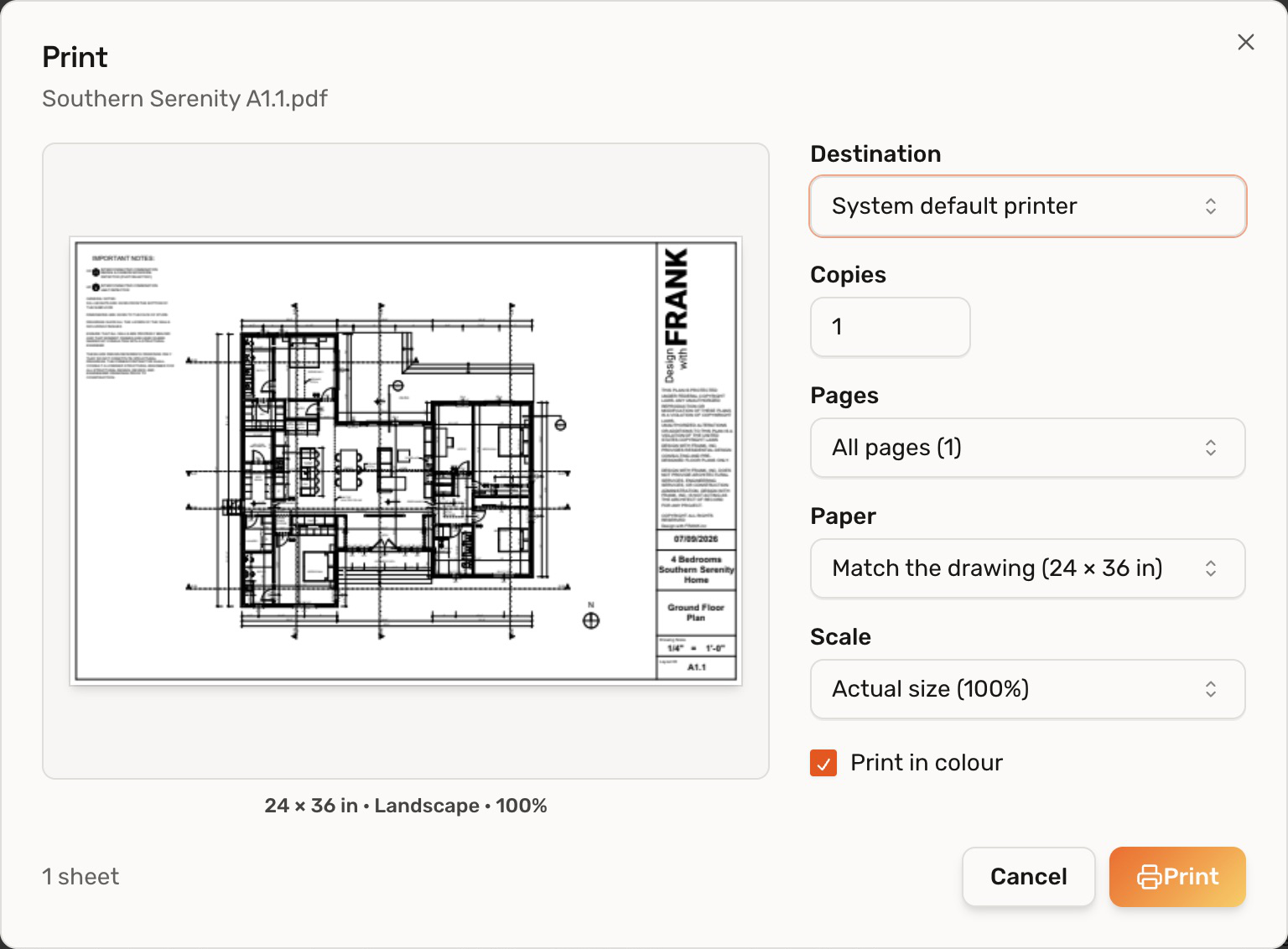
For a PDF using these paper and scale settings, choose Destination → Save as PDF, then Save PDF.
In the browser
Deta opens the browser’s print dialog. Choose the printer, pages, paper size, and scale there, then print. The exact labels depend on your browser.
Check your result
The desktop preview shows the paper dimensions, orientation, and scale below the sheet. To print a 24 × 36-inch drawing at its original scale, use matching paper and Actual size (100%). The viewer’s zoom and measurement calibration do not resize the printed sheet.
Troubleshooting
- Edges would be cropped: choose larger paper to keep the original scale, or Fit to page to fit the whole drawing.
- The set has different sheet sizes: desktop printing uses one paper size per job. Print each size separately, or use Save as PDF → Match the drawing to preserve each page’s size.
- An older desktop app opens a PDF viewer instead: print from that viewer, or update Deta to use the in-app print dialog.