How to save back to Dropbox or Google Drive
Replace the linked PDF with Save, or create a separate file with Save As Copy and find its link in the version tree.
Updated
Find the controls
Save / Save As Copy
Viewer header → Save beside the Dropbox or Google Drive logo
Watch the walkthrough
Before you start
Open a drawing linked to Dropbox or Google Drive, then select the version or branch you want to save. Changes in Deta do not replace the provider’s PDF until you save back.
For files on your computer, see Open and save a local PDF.
Steps
Click Save in the viewer header, beside the  Dropbox or
  Google Drive logo. Choose what to do with the source file:
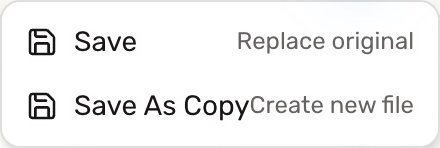
Replace the original PDF
- Choose
 Save.
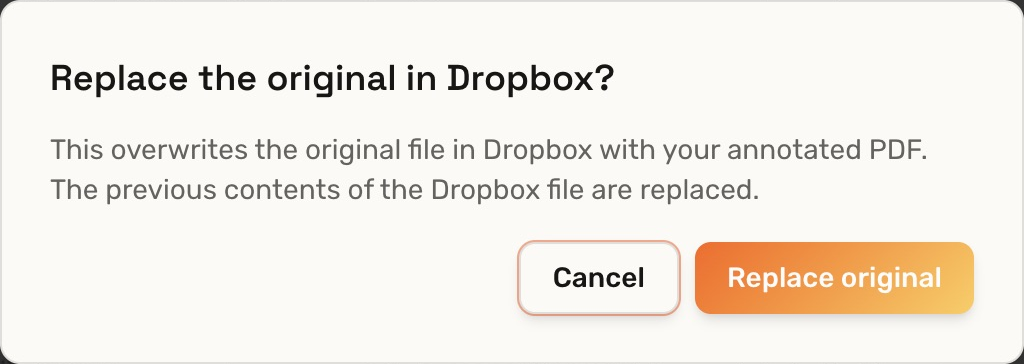
Save. - Read the replacement confirmation, then click Replace original.
This writes the selected version and branch back to the linked file, including its markups. Anyone opening that source PDF will see the saved contents.
Save a separate copy
- Choose Save As Copy.
- Open
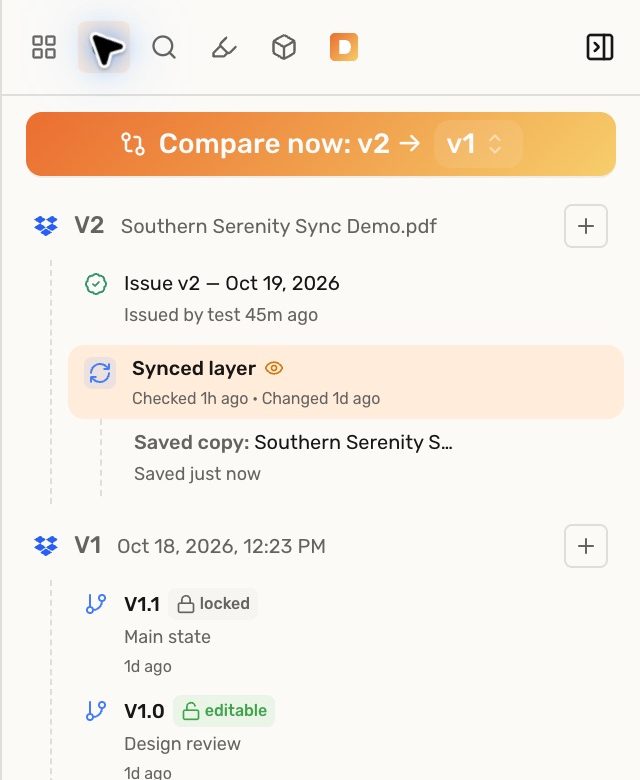
 Versions on the right of the viewer. Find Saved copy beneath the version or branch you saved.
 - Move over that row and click
 to open the copy in Dropbox or Google Drive.
Deta creates an (annotated).pdf file beside the original. The original stays unchanged, and the tree keeps a link to the separate copy. This does not create a new Deta version or change which source file the drawing follows.
Check your result
Save updates the linked PDF and its synced layer. Ordinary markup changes stay on the current version. Changes to pages or PDF content—including text edits, signatures and stamps—or saving an older version over the source create a new version.
Save As Copy adds a linked copy row. For how incoming source revisions appear, see Synchronization.
Troubleshooting
- The source cannot be saved: connect an account that can edit the original file. Access to the drawing in Deta does not itself give access to its Dropbox or Google Drive source.
- You only need a download: use Export PDF. For a fixed, dated record in Deta, use Issue.