How to plan cuts from sheets
Fit measured pieces onto purchased sheets, with dimensions, rotation, and saw-cut allowances.
Updated
Find the controls
Sheet cutting
Quantity cell → scissors / Cuts → Fit pieces onto sheets
Watch the walkthrough
Before you start
Set the page scale and draw the pieces as area-bearing marks. Set up a live area takeoff with a linked sheet product and an order formula. Each mark supplies a piece to place on the sheet.
Steps
- Click
 Stock cutting settings in the Quantity cell, or Cuts if a plan already exists.
 - Under Ordering, choose Fit pieces onto sheets.
- Enter one purchased sheet's Width, Length, and Units, such as 4 × 8 ft.
- Choose whether to Allow 90° rotation. Leave it off when grain or panel direction matters. Enter Saw cut width in the displayed unit.
- Click Save size & apply for new dimensions, or Apply when using the saved size. Saving dimensions updates the linked product's size and coverage for every table that uses it.

Check your result
The Quantity cell shows the required sheet count. The layout distinguishes Pieces, Reusable offcuts, and Shape trim, and reports installed area and saw loss.
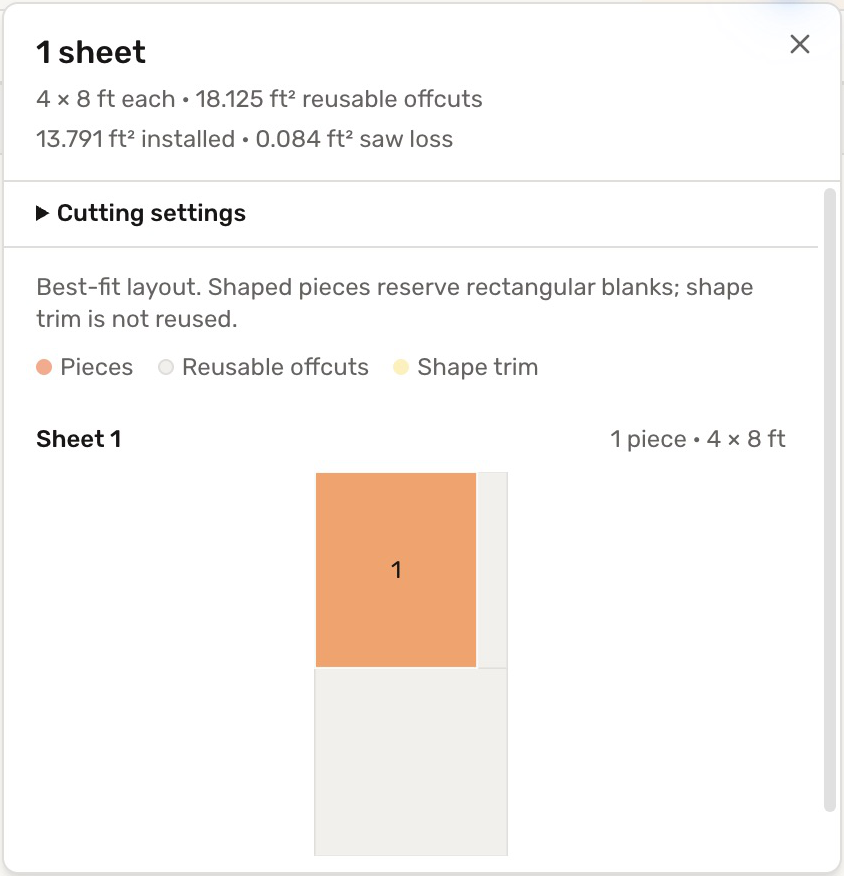
Shaped pieces reserve rectangular blanks; their shape trim is not reused. The result is a best-fit layout, not a guaranteed minimum.
Troubleshooting
- A piece does not fit: allow rotation only if the material permits it, choose larger stock, or model the intended joints. Deta does not silently split an oversized piece.
- The layout cannot use a typed total: restore the live area takeoff so it can read individual piece shapes.
- Other tables show the new sheet size: dimensions belong to the linked product. Use a separate product row for a different purchased size.