How to compare two drawing versions
Choose two PDF versions and inspect their differences with Peek or Split.
Updated
Find the controls
Compare versions
Versions → Compare now
Before you start
Have two PDF versions in the same cloud drawing. Open the newer PDF, then open Versions in the right panel. Comparison checks PDF versions, not annotation branches.
Steps
1. Choose the other version
In Compare now, select the earlier PDF version from the dropdown, then click Compare now. For example, compare V2 against V1.
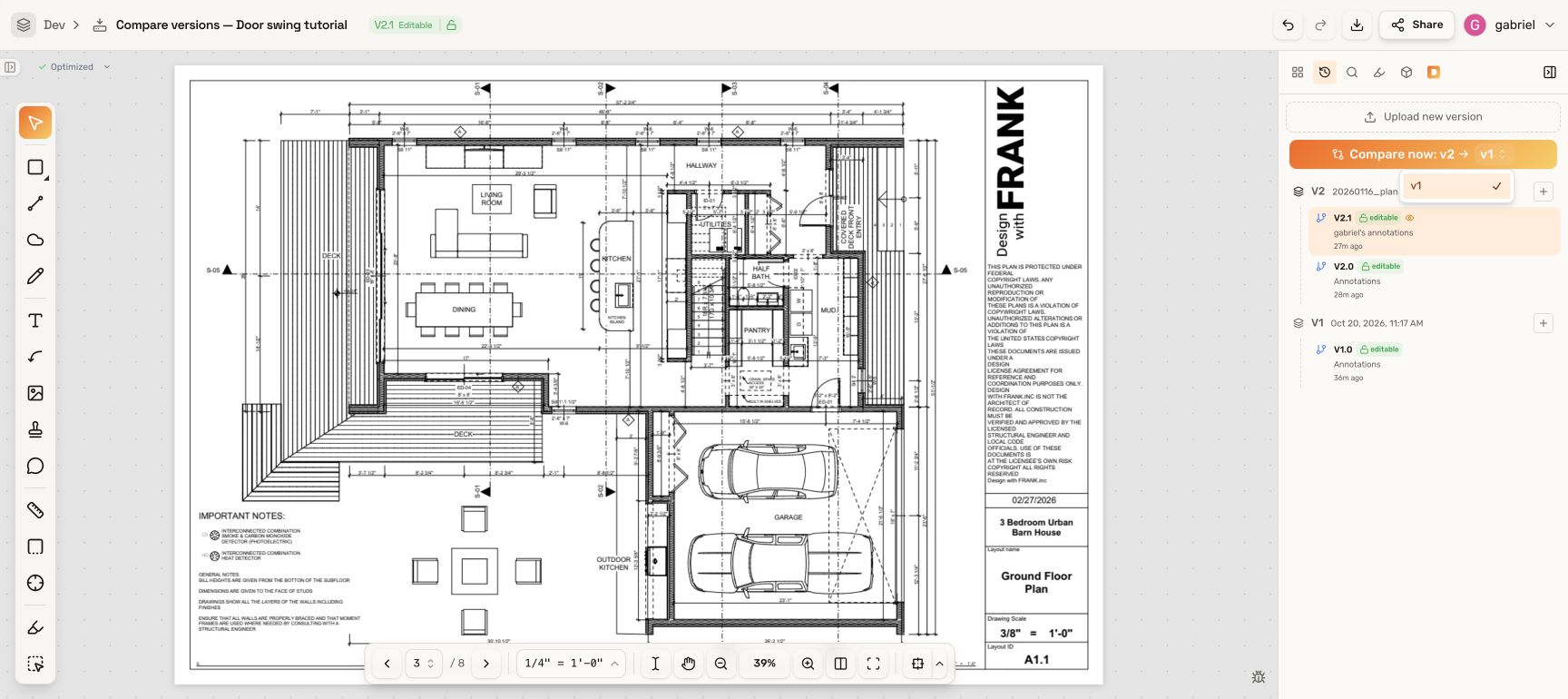
2. Find a change
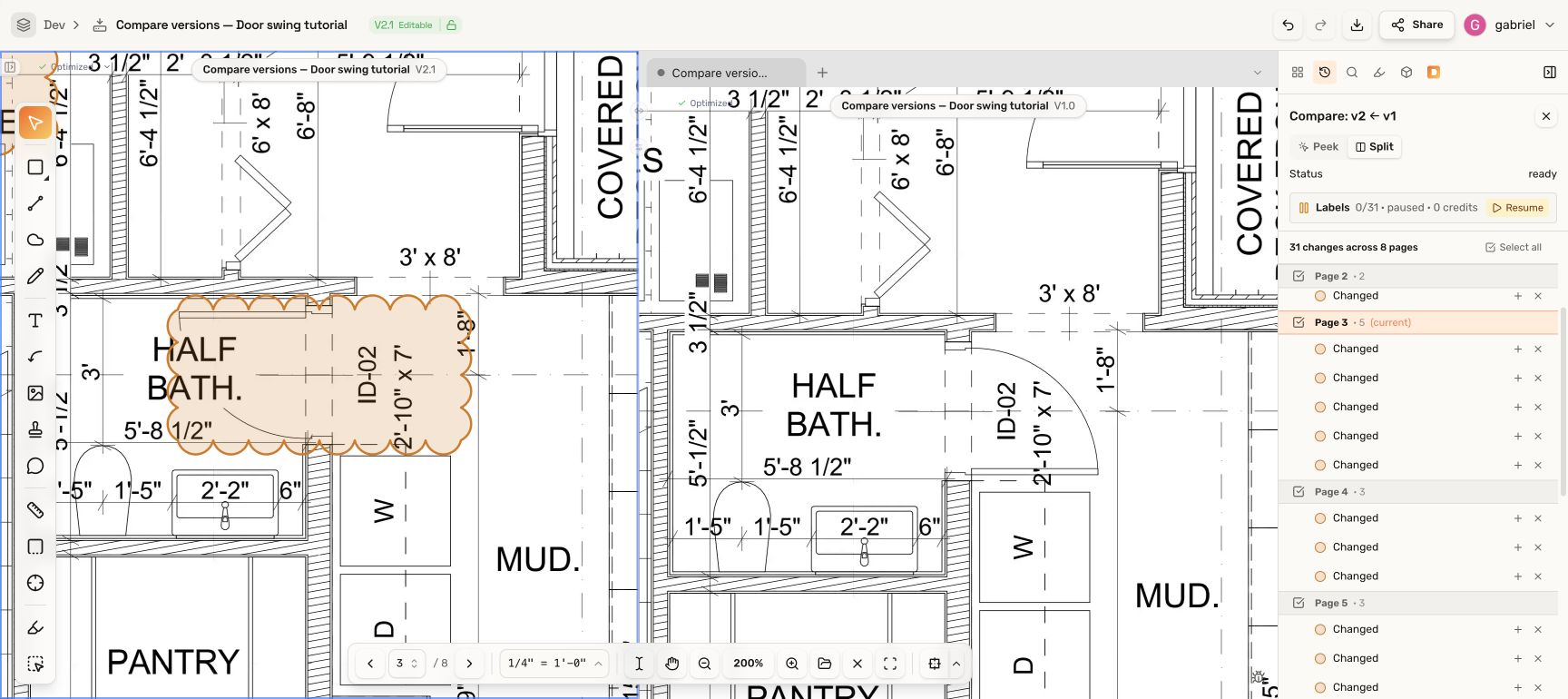
Wait for the comparison to finish. Click a page heading to see that page, then click a change row to zoom to its detail.
3. Look at both versions
- Peek: hover over a change cloud to see the earlier PDF. Move away to see the current PDF. In the video, the door swing flips.
- Split: show both PDFs side by side. Check the version labels above the panes.
- Magnifier: turn it on, or hold Space, to inspect the earlier PDF under your pointer.
Continue to Adopt or dismiss changes when you are ready to record decisions.
Troubleshooting
- No Compare now button: upload a second PDF version to this drawing.
- Unexpected results: check the version pair. Comparison uses the saved PDFs; unsaved page rearrangements are not included.
- Generic “Changed” labels: you can inspect the drawing while AI descriptions are paused or still processing.
Related guides
- Compare two local PDFs — use files on your computer in the desktop app.