How to draw circles and ovals on a PDF
Use Circle to mark round details, or hold Shift to draw an oval around a wider area.
Updated
Find the tool
CircleU
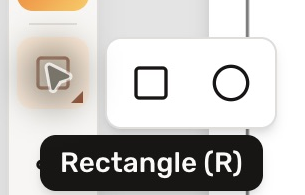
Left toolbar → Rectangle flyout → Circle
Watch the walkthrough
Before you start
Open a PDF in Deta. You do not need to set a page scale to draw a circle or oval.
Steps
1. Choose Circle
- Right-click Rectangle in the left toolbar to open its flyout.
- Choose Circle, or press U directly.
2. Draw the shape
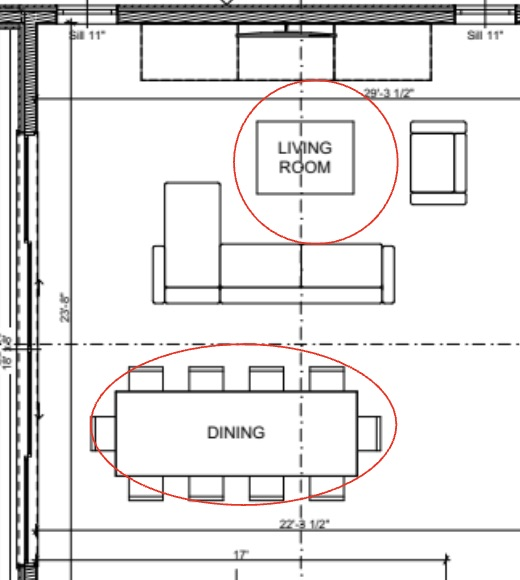
- Click and drag around a round detail. Release to place a circle.
- To draw an oval, hold Shift while dragging.
3. Adjust it
Choose Select (V) and click the shape. Use its handles to move or resize it. Change Stroke and Fill in the properties bar above the drawing; choose Fill → None to keep the plan visible.
Check your result
A normal drag produces equal width and height. Holding Shift lets you make an oval with different dimensions.
Troubleshooting
- Circle is hidden: it shares a toolbar slot with Rectangle. Open the flyout or press U.
- You need a circumference measurement: see selection measurements and set the page scale first.