How to add tags and properties to markups
Use tags to group markups and fields to record details such as a room, rating, or size.
Updated
Find the controls
Tags and properties
Right panel → Markups → expand a markup → Add field
Before you start
Assign a preset to the markups you want to describe. The preset defines their fields; each markup can have its own values.
Steps
- Open
 Markups on the right of the viewer. Expand a markup’s row using its chevron.
 - Click Add field, enter a name such as Location, and click the type icon beside the name.
- Choose Text, then press Enter or click
 to add the field.
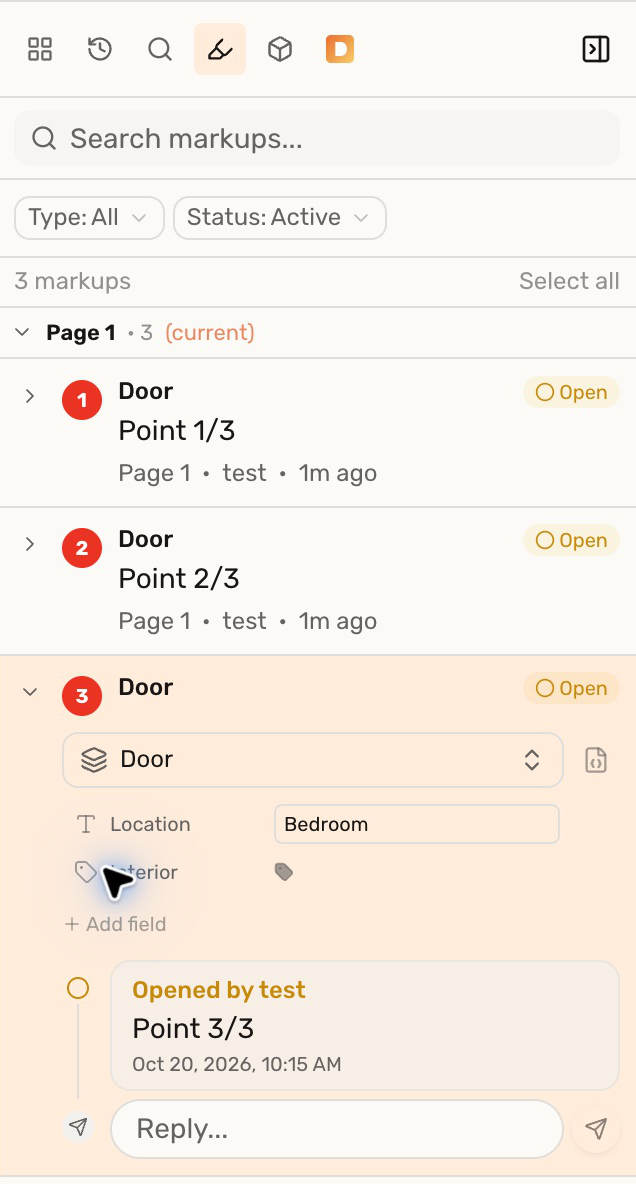
 - Enter a value, such as Bedroom, beside Location. Repeat on the other markups, using their own room names.
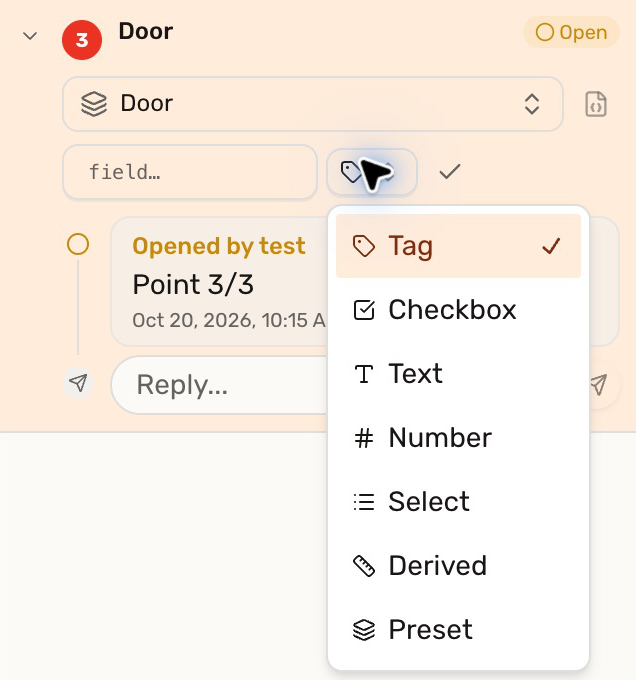
Choose the field type for the information you need:
| Type | Use it for |
|---|---|
 Tag Tag | A label shared by the preset, such as Interior; it has no separate value. |
| Checkbox | A yes/no value for each markup. |
| Text | A room name or description. |
| Number | A numeric value such as a rating or size. |
| Select | A choice from a defined list. |
Adding a field to Door makes that field available on the other Door markups. Entering Bedroom changes only that markup’s Location value. A Tag, such as Interior, applies through the preset to all its markups.
Check your result
Expand another Door markup. Location is available there too, ready for that door’s room name. A table can count bedroom doors with count(door & Location=Bedroom).
Troubleshooting
- There is nowhere to enter a value: the field is a Tag. Use Text, Number, or Select for a value; changing the field type affects its definition throughout the file.
- A filter finds no matches: use the exact field name and text value, including capitals:
Location=Bedroom.