How to read measurements for selected markups
Use Measure mode in Deta’s snapping controls to show a popover with the cumulative length and area of selected markups, including perimeter and circumference.
Updated
Find the controls
Measure modeF4
Bottom viewer bar → Snap & measure options → Measure
Before you start
Set the page scale and add the shapes you want to measure. You can trace the PDF with a polyline if the feature is part of the original drawing.
Steps
Show the selection measurements
- Open the
 options arrow beside the snapping button in the bottom viewer bar.
 - Turn on
 Measure (F4). This enables measurement display; keep using Select (V) to choose your markups.
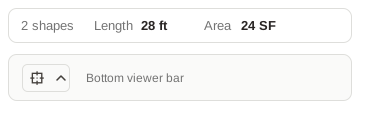
 - Select a shape. A small measurement popover appears just above the bottom viewer bar, showing Length and, for a closed shape, Area.
Read a combined total
Hold Shift and click more shapes, or drag a selection box around them. The popover updates to show the shape count and cumulative measurements for the selection on that page. Select just one shape to return to its individual measurements.
| Selected geometry | Length | Area |
|---|---|---|
| Line, open polyline, or Dimension | Combined segment length | — |
| Rectangle, closed polyline, or Area markup | Perimeter | Enclosed area |
| Circle or oval | Circumference | Enclosed area |
Overlapping areas and shared edges are counted separately for each selected shape. Values use your Drawing Units settings.
Read perimeter or circumference
Select a closed markup and read Length in the same popover. For a rectangle or closed polyline, this is its perimeter; for a circle or oval, it is its circumference. Select several closed shapes to read the sum of their boundaries.
For a round feature printed on the PDF, first fit a  Circle (U) markup over it. Circle is in the Rectangle tool’s flyout. A normal drag creates a circle; hold Shift to draw an oval. Select the markup to read its measurements. Oval circumference is approximate.
Check your result
The popover’s values change with the selection. Length follows the shape’s outline; it is not the width of its selection box. After dragging a point, release it to see the updated total.
Troubleshooting
- No popover appears: turn on Measure in the snapping menu and select a measurable markup. Printed PDF lines, text notes, pictures, and revision clouds do not contribute to these totals.
- The total is larger than expected: clear the selection and select only the shapes you need.
- The values have the wrong size or units: check the page scale and Drawing Units.