How to change measurement units and precision
Choose Metric or Imperial, then set length and area formats and precision from Scale → Drawing Units.
Updated
Find the tool
Drawing Units
Bottom viewer bar → Scale → Drawing Units
Before you start
Open a drawing you can edit. Scale relates distances on the page to real distances. Units control how those measurements are displayed. Precision controls rounding. Choose the unit system before adding a scale.
The page scale is set separately for each page. Drawing Units are saved with the drawing version.
Steps
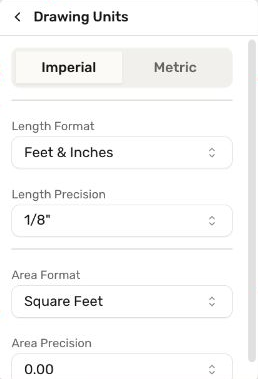
- Open Scale in the bottom viewer bar, then Drawing Units.
- Choose Metric or Imperial.
- Set Length Format: meters, centimeters, or millimeters for Metric; feet and inches, decimal feet, or decimal inches for Imperial.
- Set Length Precision: choose how finely lengths are displayed. Decimal formats use decimal places; feet and inches use fractional increments.
- Set Area Format: square meters or hectares for Metric; square feet or acres for Imperial. The area format is a separate choice from the length format.
- Set Area Precision to choose the decimal places for areas. Changes apply as you select them; there is no Save button.
- Use the back arrow to return to scales. After switching between Metric and Imperial, select or enter the equivalent page scale again. For example,
1/4" = 1'-0"is1:48in Metric. Then check a known measurement.
Check your result
The same 12-foot span reads 12'-0", 12.00 ft, and (after choosing Metric and 1:48) 3.66 m. A 3.5 m distance is the same length as 350 cm or 3500 mm. Changing its display unit should express the same physical distance. An area can stay in square meters while lengths display in millimeters.
With two decimal places, 3.456 m displays as 3.46 m. More displayed digits do not improve the accuracy of the points you placed or the page calibration.
Troubleshooting
- Area did not change with the length format: choose Area Format separately.
- Small measurements look rounded or show zero: use a smaller unit or finer precision.
- Precision changed after switching formats: switching between fractional and decimal length formats resets length precision. Set it again after choosing the format.