Work together on a drawing
Review the same cloud drawing together. See who is present, where they are working, and their live cursors on the page.
Updated
Find the controls
Versions
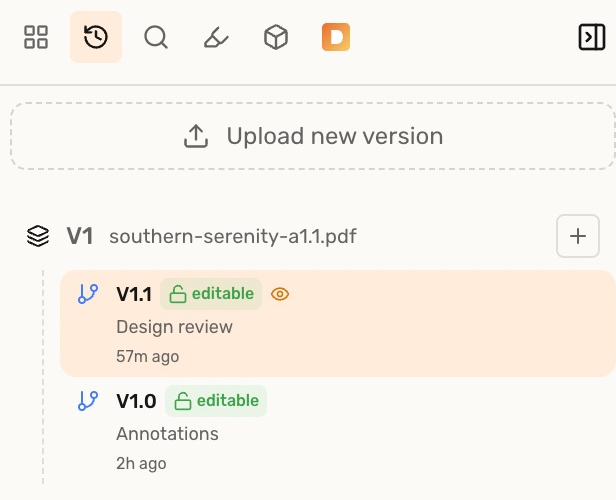
Viewer → Versions in the right panel, or click the version label above the drawing
Before you start
Everyone needs access to the drawing through a workspace invitation or an individual share.
Steps
- Open the drawing. In
 Versions, choose the same version and branch as your teammates.
 - Open the page you want to review together.
- Add markups or comments. Others on that version and branch see your changes while connected.
Avatars and cursors
Participants appear as colored avatars with their initials near the top right. Hover over an avatar to see their name and location. A  branch badge means they are elsewhere in the version tree.
On the same page, version, and branch, you also see their  cursor with their name and matching color. People working elsewhere remain visible as avatars.
Troubleshooting
- Someone cannot add markups: check their drawing access.
- A teammate's markups or cursor are missing: hover over their avatar and check that you have the same version, branch, and page open.