Split screen and document tabs
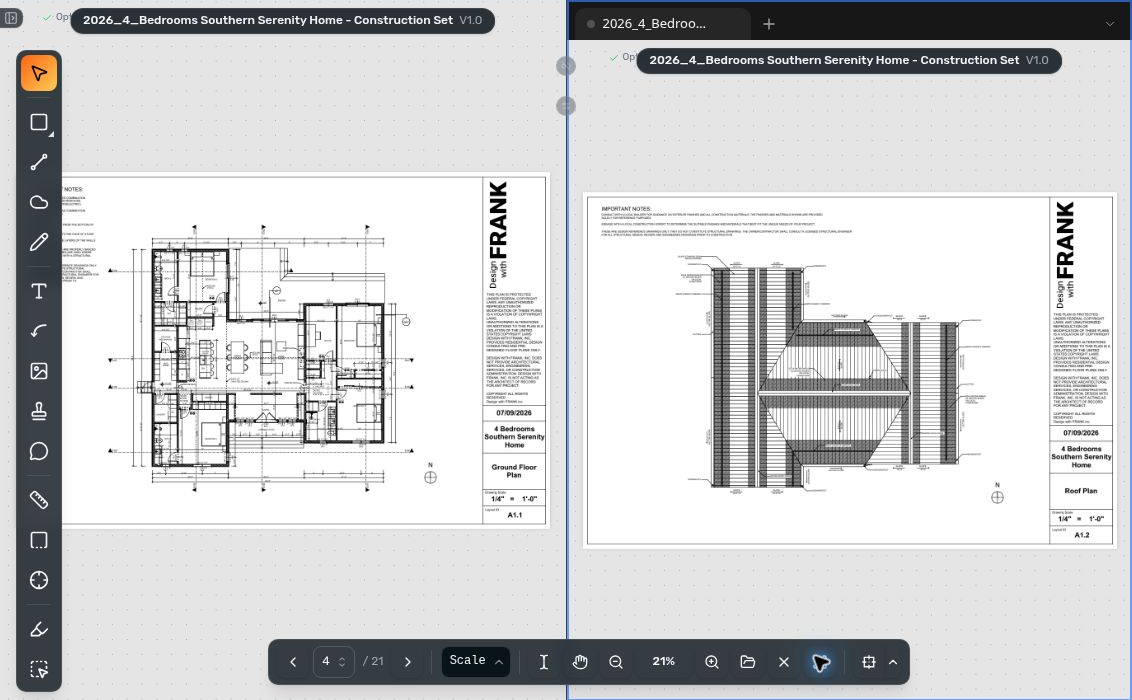
View documents side by side, navigate pages independently, and keep multiple reference tabs in the second pane.
Updated
Find the controls
Open in split view
Bottom viewer toolbar → beside Fit to view
Watch the walkthrough
Open split view
- Click
 Open in split view in the bottom viewer toolbar, beside Fit to View.
 - Choose Open this file in both panes, or choose another document.
Open files from your workspaces, connected Dropbox or Google Drive, or your device.

Navigate pages independently
Click a pane, then use its page picker or page arrows to change pages.
Use multiple tabs
- Click
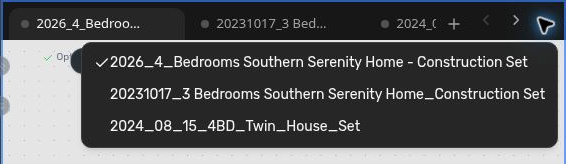
 New split tab in the second pane to open another document.
 - Repeat to add more documents, then click their tabs to switch between them.
- Use All split tabs to find an open tab when the bar is full.
Close split view
Click  Close split view in the bottom toolbar to return to one pane.