Understand synchronization
Open a PDF from Dropbox or Google Drive and follow its source updates in the version tree. Review branches keep their own markups.
Updated
Find the controls
Synced layer
Versions → latest version → Synced layer (Dropbox or Google Drive drawings)
New to versions and branches? Start with Understand the version tree.
Open a connected PDF
Open a PDF from Dropbox or Google Drive. Deta keeps it linked to the source PDF.
Dropbox in the version tree
Open  Versions on the right. The
  Dropbox logo identifies the source;
  Synced layer shows its PDF.
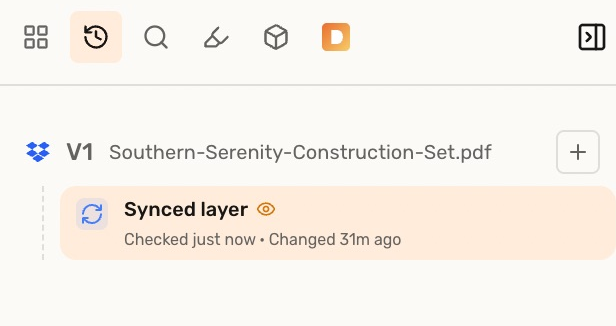
Google Drive in the version tree
Google Drive drawings use the  Google Drive logo and the same Synced layer structure.
Updates from the source
Deta checks the source when you open the drawing and when you return to Synced layer. Click the selected Synced layer again to check for updates.
- Checked is when Deta last checked the source.
- Changed is when its content last changed. A recent check does not mean a new revision was found.
When someone replaces the source PDF with a revised drawing, Deta automatically adds a new version the next time it checks the source. V1 stays available; the revised drawing becomes V2. Your review branches and markups stay with the earlier version.
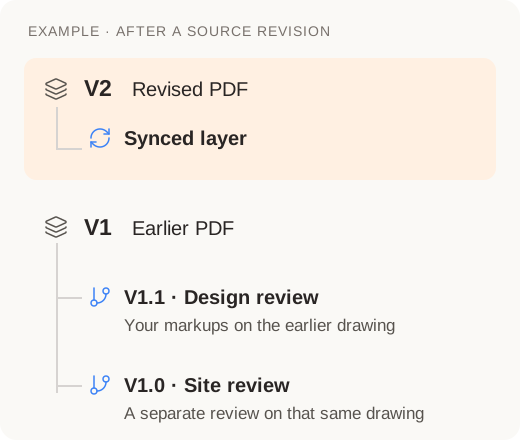
When only supported PDF markups change, Deta updates the synced layer on the existing version.
Make your own edits
Editing Synced layer starts an editable  branch; the source layer stays separate. Editing that branch does not replace the provider’s PDF. Save back to Dropbox or Google Drive separately when you want to update the source.