How to navigate and organize PDF pages
Find a page, select several sheets, and use the Pages panel to reorder, insert, crop, or extract PDF pages in Deta.
Updated
Open  Pages in the right panel to browse your document and change its pages.
Start here
- Reorder and rotate pages — change page order or orientation.
- Add, duplicate, or delete pages — insert blank sheets, copy existing pages, or remove them.
- Insert pages from another PDF — choose source pages and where to insert them.
- Crop a page or copy a detail — keep a region of a sheet, or make it a separate page.
- Extract pages — download selected pages as a separate PDF.
Find and select pages
Click a thumbnail to open a page. Adjust Tile size at the bottom, or use  Fill the window for a larger view. Back beside the drawing restores the panel.
| To select | Action |
|---|---|
| One page | Click its thumbnail. |
| A consecutive range | Click the first page, then Shift + click the last. |
| Separate pages | Cmd + click on Mac or Ctrl + click on Windows to add or remove a page from the selection. |
| Pages inside a selection window | Hold Shift and drag a window over the thumbnails. |
| All pages | Click Select all above the thumbnails. |
With no selection, actions apply to the current page.
Find page actions
Right-click a thumbnail or open its  Page menu. For several pages, right-click one in the selection.
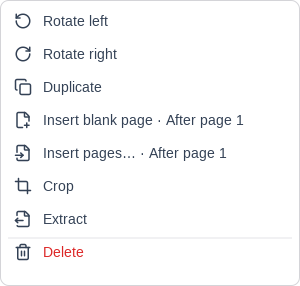
Actions also appear above the thumbnails or under More page actions.
Save or discard page changes
Deta saves workspace page changes automatically. To download a PDF, use  Export & Print → Export PDF. To update a connected or local source file, use its save control.
Page edits do not use ordinary Undo; drag or rotate pages back to reverse those changes. Discard page changes resets the entire arrangement, removing added pages and their markups. Markups on original pages remain. Previously saved or exported PDFs are unaffected.
How to reorder and rotate PDF pages
Drag PDF pages into a new order or rotate one or more sheets in Deta’s Pages panel.
How to add, duplicate, or delete PDF pages
Insert a blank page, duplicate an existing sheet, or delete selected pages from a PDF in Deta.
How to insert pages from another PDF
Insert pages from another PDF into an open document in Deta. Choose the source pages and where to place them.
How to crop a PDF page or copy a detail to a new page
Crop a sheet to a chosen region, restore the full page, or copy a drawing detail onto its own page in Deta.
How to extract PDF pages into a separate file
Download selected pages as a new PDF in Deta, keeping them in the original document or removing them after extraction.
Split screen and document tabs
View documents side by side, navigate pages independently, and keep multiple reference tabs in the second pane.