How to create a product library
Keep reusable product names, rates, units, and coverage in a workspace library.
Updated
Find the controls
Product libraries
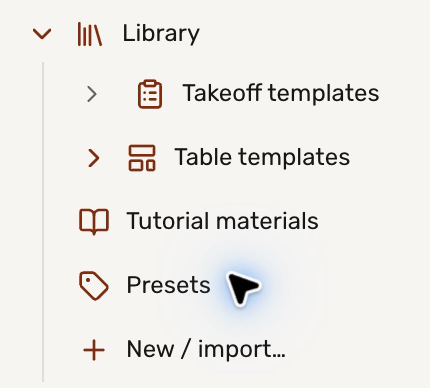
Workspace sidebar → Library → New / import…
Before you start
Open a drawing in the workspace where the library will live. Libraries are saved to that workspace; another workspace has its own collection. A product library is a reference table: each row represents a product or item, and its fields hold information such as price, unit, or coverage. Tables can link to these rows.
Steps
Open the library
- Expand your workspace in the left sidebar. Below its files, expand
 Library.
 - Click
 New / import… at the bottom of the list.
Add products
- Click New above the library grid. Enter a name, such as Tutorial materials, and click Create library.
- Click Add a column. Name it Product, choose Text, and click Add column.
- Use at the end of the headings to add other fields. For example, use Currency for Unit price, Number for Coverage, and Text for Unit.
- Type in the empty row to add a product. Press Enter to finish a cell. Double-click an existing cell to edit it; changes save automatically.
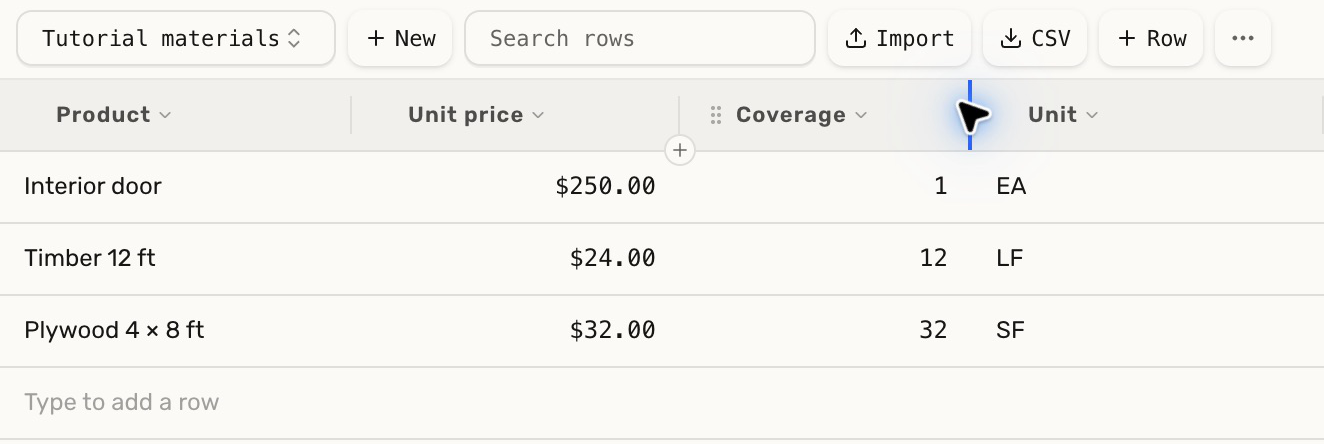
Use Row to add another item and Search rows to find one. For an existing spreadsheet, import its rows instead of entering them individually.
Check your result
The library appears under the workspace's Library entry. Reopening it shows your saved products and fields. Its values can supply several tables without retyping each price.
Troubleshooting
- Row is unavailable: add the first column before adding rows.
- A price looks like ordinary text: click its column heading and change the format to Currency.
- A table uses an old value: reopen the table to read the current library values; also check whether its cell has a typed override or the table is frozen.