How to calibrate your screen for actual-size PDFs
Match an on-screen ruler to a real ruler so 100% zoom shows your PDF at its printed size. Calibrate the screen you use to review drawings.
Updated
Find the controls
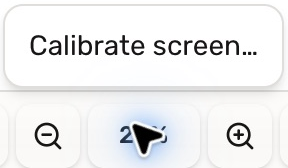
Calibrate screen…
Bottom viewer bar → right-click the zoom percentage
Watch the walkthrough
Before you start
Open a PDF and have a physical ruler ready. Keep Deta on the screen you want to calibrate, using your usual display scaling and browser zoom.
Screen calibration sets how large the PDF appears on your monitor. The page scale sets the real-world lengths used by Dimension, Area, and other measurements. Calibrating your screen does not change those values or resize exported and printed PDFs.
Steps
- Find the zoom percentage in the bottom viewer bar, between Zoom Out and Zoom In.
- Right-click the percentage, then choose Calibrate screen…. A normal click returns to actual size instead of opening this menu.
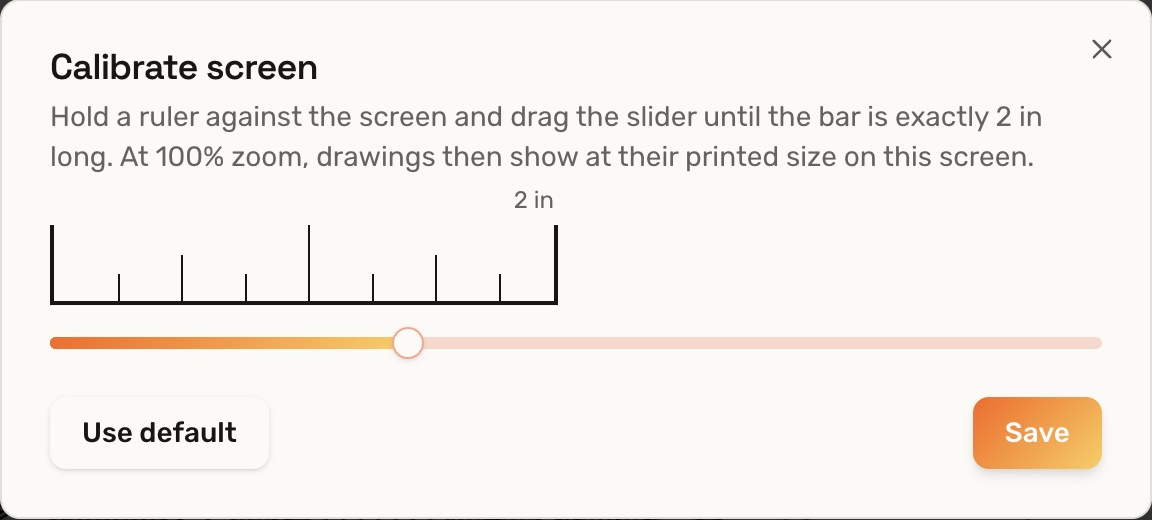
- Hold a ruler against the screen. Adjust the slider until the full on-screen bar, from its left end to its right end, matches 2 inches on an Imperial drawing or 50 mm on a Metric drawing. Match the bar in your own Deta window; screenshots and videos are resized for viewing.
- Click Save when the lengths match.
- Click the zoom percentage to return to 100% and view the PDF at its printed size. Saving the calibration alone does not move the drawing to 100%.
Check your result
At 100%, a line that is one inch long on the PDF's printed sheet should appear one inch long on the calibrated screen. A wall's real-world dimension is different: at a quarter-inch architectural scale, a 12-foot wall occupies 3 inches on paper.
Troubleshooting
- Using another screen: calibration is saved locally for your screen setup and does not sync with your account. Calibrate each screen separately. If you change display scaling, calibrate that setup again.
- Measurement labels are wrong: check the page scale. Adjusting screen calibration will not correct a takeoff.
- The whole sheet no longer fits: use Fit to View (F) to see the full page again. Its zoom may be below 100%.