How to connect Dropbox
Connect your Dropbox account as a file source, then choose a PDF to open in Deta.
Updated
Find the controls
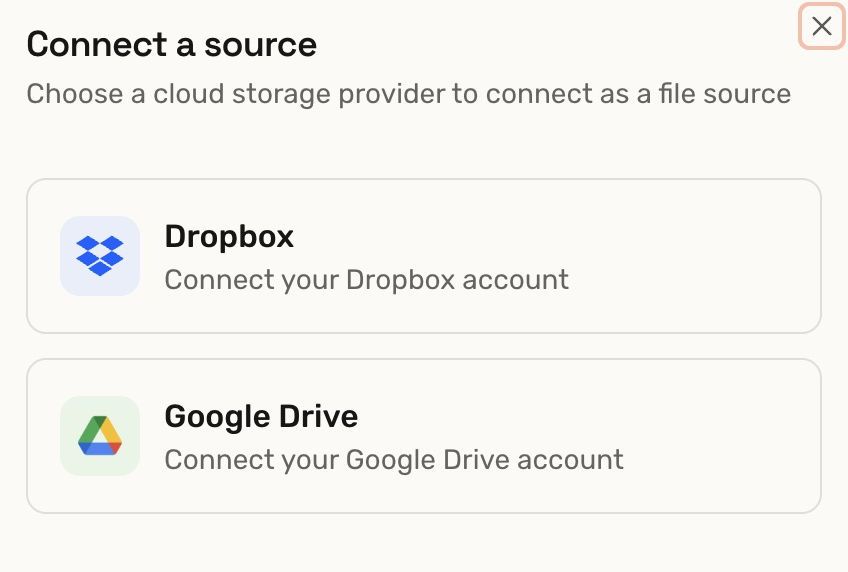
Connect a source
Sidebar → File sources → + → choose Dropbox or Google Drive
Watch the walkthrough
Before you start
Have the Dropbox account containing your PDF ready. If it is already listed under File sources, skip to Open a PDF.
Steps
Connect your account
- In Deta's sidebar, move over File sources and click
 (Connect a source).
 - Choose
 Dropbox.
- Sign in to Dropbox if prompted, then approve Deta's requested access.
- Return to Deta. The account now appears under File sources.
Open a PDF
- Select your account under File sources, then click All files.
- Browse to your PDF, or use Search to find it.
- Click the
 Import button on the PDF's card. Deta opens the drawing when the import finishes.
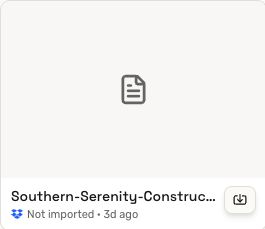
Use Imported to reopen drawings you have already brought into Deta.
Find the synced source
Open  Versions on the right of the viewer. The Dropbox logo beside V1 identifies the source. Its
  Synced layer shows the connected PDF.
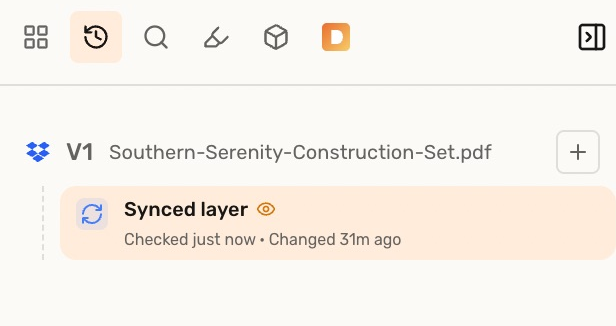
The drawing stays linked to its source. See Synchronization for how source changes become new versions.
Troubleshooting
- The connection limit is reached: open Plan & Usage to review your current plan and available connections.
- The Dropbox session has expired: connect the same Dropbox account again, then retry opening the file.