How to save a table template
Save a reusable table structure, with optional starter rows, in the workspace library.
Updated
Find the controls
Table templates
Table actions → Save as table template…
Before you start
Open a table whose columns and formulas you want to reuse. A table template stores a reusable setup. It can also retain the branding and layout you prepare in Print table.
Steps
- Open
 Table actions above the grid.
 - Choose Save as table template… and enter a Template name.
- Turn on Include starter rows if you want to keep descriptions, library product selections, and reusable formulas. Leave it off to save the table structure without its item rows.
- Click Save.
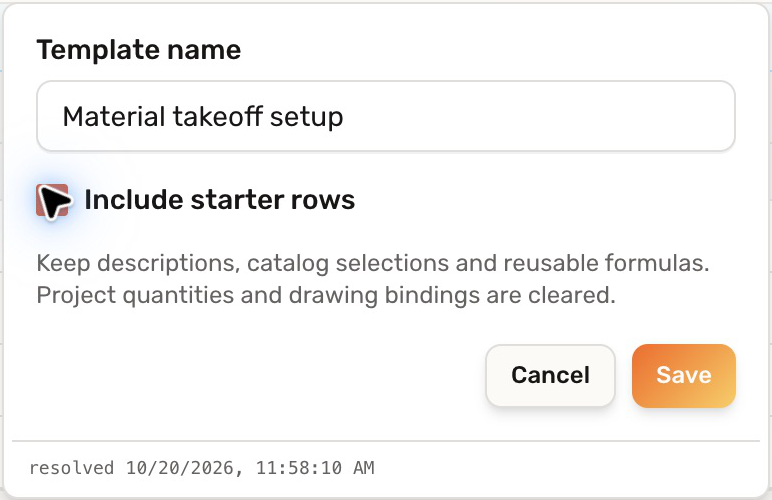
Project quantities and drawing bindings are cleared from the saved template. The existing table keeps its project data.
Manage the saved template
Expand  Library → Table templates in the workspace sidebar and open the template. Edit its setup and click Save template. Changes to the template do not rewrite existing tables or copies already used in takeoff templates.
Check your result
The saved name appears under Table templates. Open it to see the reusable columns and any starter rows you included. A template is not a frozen record of the project's measured quantities; use Freeze table for that.
Troubleshooting
- Project quantities are missing: this is expected. Templates clear drawing-specific data so it is not carried into another takeoff.
- Starter rows are missing: include them when saving if the descriptions and reusable selections are part of the setup you want to keep.
- An existing table did not change: template edits apply to the saved template, not previous copies.