How to highlight a PDF
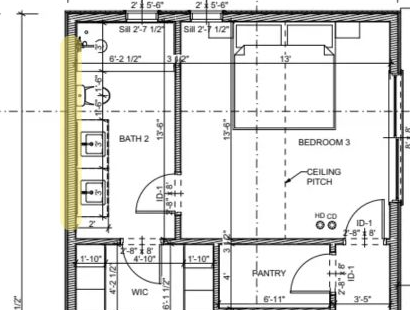
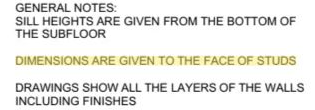
Draw a freehand highlight over a detail or drag across PDF text to highlight words.
Updated
Find the tool
HighlightG
Left toolbar → Highlight
Watch the walkthrough
Before you start
Open your PDF in Deta. Text highlighting requires readable PDF text; use freehand highlighting for scanned text or images.
Steps
Choose  Highlight in the left toolbar, or press G. Then use either method below.
Draw a freehand highlight
- Start dragging away from text and draw over the detail you want to highlight.
- Release to finish the stroke.
Hold Shift while dragging for a horizontal or vertical stroke. To draw freely even when starting on text, hold Ctrl (Windows) or ⌘ Command (Mac) before dragging.
Highlight text
- Start dragging on a word and drag across the text you want to highlight.
- Release. The highlight follows the selected words.
Hold Alt (Windows) or Option (Mac) before dragging to select text even when you start in a blank area. To highlight just one word, double-click it.
Troubleshooting
- “Loading text…” is shown: wait for the text to load before highlighting words.
- “Text snapping unavailable” is shown: reselect Highlight to retry. You can still draw freehand highlights.