How to import a product list
Paste spreadsheet rows or import a CSV, then map the columns into a product library.
Updated
Find the controls
Product libraries
Workspace sidebar → Library → New / import…
Before you start
Prepare a list with headings in its first row. You can paste cells copied from Excel or another spreadsheet, or upload a CSV, TSV, or TXT file. Export an Excel workbook as CSV if you want to upload it as a file.
Steps
- Open your workspace's
 Library, then a product library or New / import….
 - Click Import. Upload the file, or paste the copied cells into or paste rows straight from Excel.
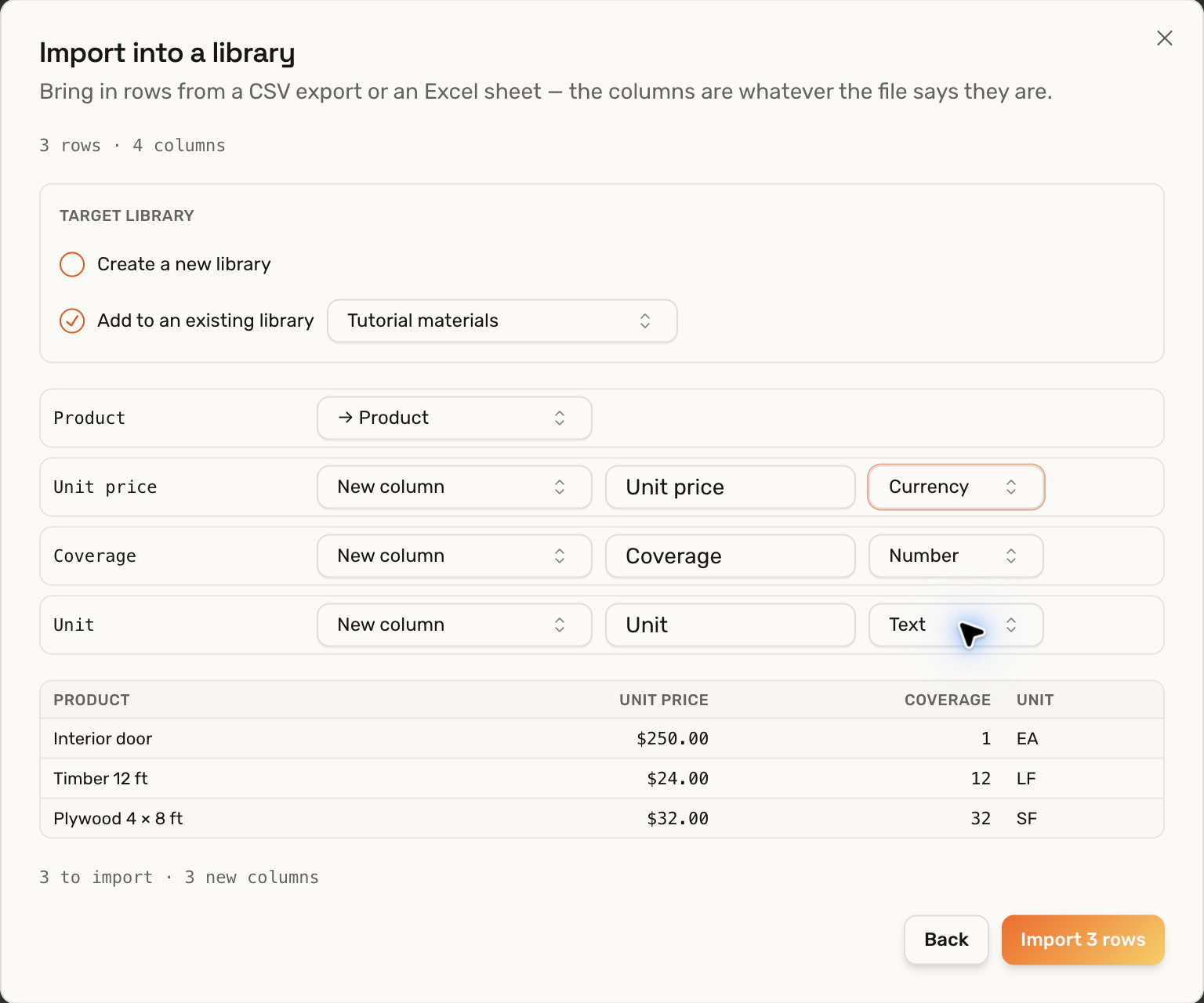
- Choose Create a new library and name it, or Add to an existing library and select the destination.
- Map each incoming column to an existing field or New column. For new fields, confirm the name and choose Text, Number, or Currency. Choose Skip for a column you do not need.
- Review the preview, then click Import with the displayed row count. Close the dialog when it confirms the import.
Check your result
The grid contains the imported rows under the intended headings. A price column should display currency; coverage should remain numeric, with units in their own field if that is how the list is organized.
Troubleshooting
- An Excel file cannot be selected: paste its cells or export it as CSV; the file picker does not import an XLSX workbook directly.
- Rows landed in the wrong field: check the mapping before importing, especially when the destination already has columns.
- The imported count is smaller than the spreadsheet: empty rows are skipped.