How to export PDF pages as images
Download a page as PNG or JPG, or export a whole document as a ZIP of page images.
Updated
Find the controls
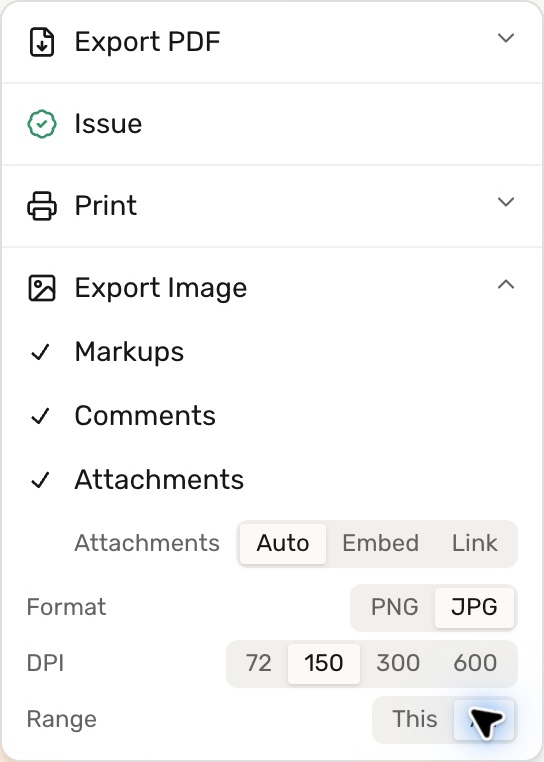
Export Image
Viewer header → Export / Print → Export Image
Watch the walkthrough
Before you start
Open the drawing and go to the page you want to export. For cloud drawings, select the branch whose markups you want included.
Steps
- Open
 Export / Print in the viewer header.
 - Click the
 chevron beside Export Image.
 - Choose PNG or JPG under Format. PNG preserves sharp edges without JPEG compression; JPG is useful for photo-heavy pages.
- Choose DPI: 72, 150, 300, or 600. Higher values produce more pixels and larger files.
- For a document with several pages, choose This (current page) or All under Range. Leave Markups checked to include annotations.
- Click
 Export Image.
Check your result
One page downloads as an image. Multiple pages download in a ZIP, with a separate numbered image for each page. Included markups become part of the image; they are not editable annotations in that file.
Troubleshooting
- DPI was capped: very large sheets can exceed the image-size limit. Deta lowers the resolution and reports the actual DPI after export.
- Range is missing: the document has only one page.
- You need editable content or comment attachments: use Export PDF.