How to create and manage branches
Start a separate set of markups on the latest drawing version, then give it a useful name.
Updated
Find the controls
Branches
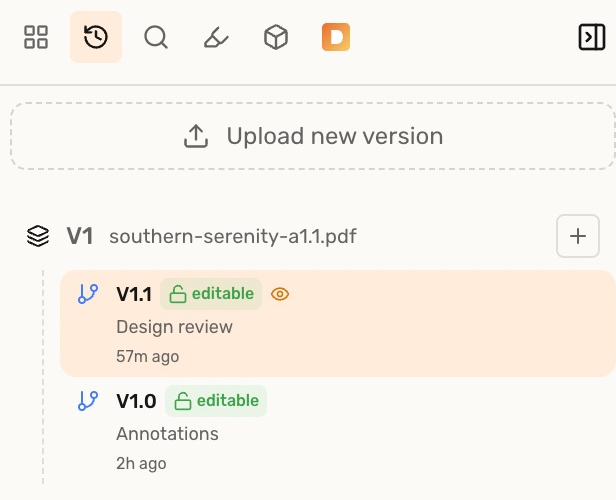
Versions → expand a version → choose a branch
Steps
Start a new branch
- Click the version label at the top of the viewer to open
 Versions.
 - Beside the latest version, click
 (Add to this version).
 - Choose
 New branch. A new branch with no markups appears in the tree.
 - Select the new branch to start marking up.
Use Copy a branch when you want to start with existing markups.
Name the branch
- Move over the branch in the tree and click
 Edit name.
 - Enter a name, such as Design review, and press Enter or click
 Save.
Save.
Lock or unlock a branch
Open the branch’s  menu and choose
  Lock branch to stop edits, or
  Unlock branch to allow them again.
Locking a branch does not make it private or change who can access the drawing.
Troubleshooting
- New branch is missing on an older version: the New branch command is offered on the latest version. To continue existing markups, use
 Copy to version from their branch.