How to set the scale of a PDF drawing
Choose a preset, type a new scale, or calibrate against a known distance. Set the scale for each page before measuring.
Updated
Find the tool
Scale / DimensionM
Bottom viewer bar → Scale, or left toolbar → Dimension
Before you start
Open the page you want to measure. Find its printed scale or a clearly labelled distance between two identifiable points. A printed ratio is reliable only if the PDF still has its original page size.
Scale belongs to each page. Zooming in does not change it. One page uses one scale, so details drawn at different scales need separate care.
Steps
Choose a scale or type a new one
- Open Scale in the bottom viewer bar. If a scale is already set, the button shows its value.
- Open Drawing Units, choose Metric or Imperial, then use the back arrow to return to the scale list.
- Select a preset, or click Find or add a scale and type the scale you need. This field accepts new values as well as searches.
- For a new value, click Add scale … or press Enter. Deta saves the scale and applies it to this page. If an equivalent scale already exists, select that result instead.
| Drawing uses… | Type… | Meaning |
|---|---|---|
| Metric ratio | 1:250 | 1 unit on the page represents 250 of the same unit |
| Imperial architectural scale | 1/4" = 1'-0" | A quarter inch on the page represents one foot |
| Imperial engineering scale | 1" = 60' | One inch on the page represents 60 feet |
Use the full notation above to make the intended scale clear. A bare number is interpreted differently in Metric and Imperial. Adding a new scale requires permission to manage scales.
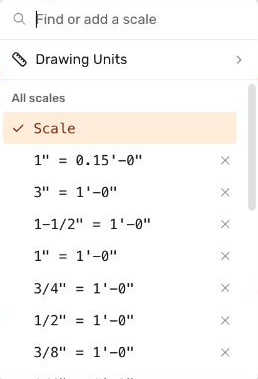
Click the field at the top and type. You do not need to find your scale in the preset list.
If you know a real distance
- Select Dimension (M) and click both ends of a known distance on the page.
- Click an empty part of the page to deselect the dimension. Click its label, then the ruler button in its editor to open Set Scale from Dimension.
- Enter the real length with units, such as 3.5m, 350cm, or 10'-6", using the drawing's unit system.
- Choose the scale offered by the popup. Compare the measured length next to each suggestion; a nearby standard scale may differ from the exact calibration. Adding an exact custom scale requires permission to manage scales.
Check your result
Measure a second known distance elsewhere on the page. It should agree with the drawing. On the Southern Serenity plan, the ¼-inch scale matches the bedroom’s printed 12-foot width and the office’s 14-foot-8-inch span.
Existing measurement labels recalculate when the page scale changes; the PDF itself is not resized.
Troubleshooting
- The value is consistently wrong: check the page scale and unit system. A resized scan may need calibration instead of the printed ratio.
- One part matches but another does not: the sheet may contain details at different scales or a distorted scan. One calibration cannot correct both independently.
- No Add scale option appears: enter a complete scale using the examples above. If the same ratio already exists, select it. Adding a new value also requires permission to manage scales.