How to copy a PDF detail with Snapshot
Copy a region of the base PDF and paste it as a picture markup you can move and resize.
Updated
Find the tool
SnapshotX
Left toolbar → Snapshot
Watch the walkthrough
Before you start
Open a PDF in Deta. Snapshot captures the base PDF, not the markups placed over it.
Steps
1. Capture the detail
- Choose Snapshot in the left toolbar, or press X.
- Drag a rectangle around the PDF detail you want to copy. Release to capture it.

2. Paste and position the copy
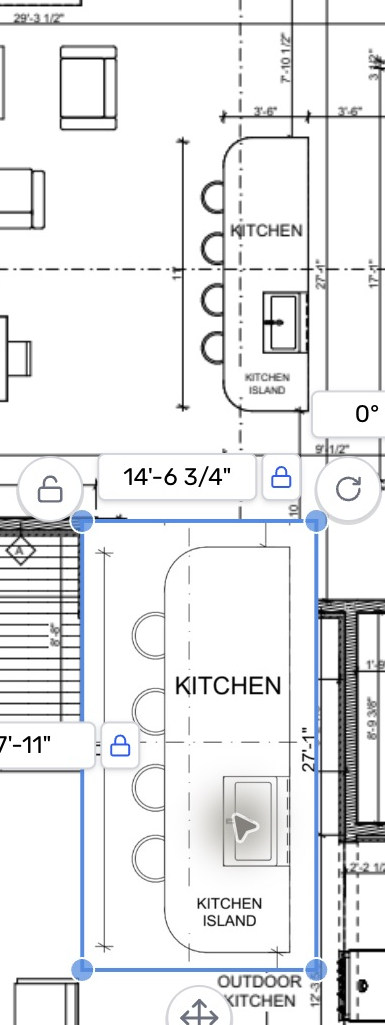
- Press ⌘V on Mac or Ctrl+V on Windows to paste the capture as a picture markup.
- Move the selected picture using its move handle.
- Drag a corner handle to resize it.
Check your result
The original PDF detail stays in place. The pasted copy is a separate picture with selection handles; it does not become editable PDF lines or text.
Troubleshooting
- The copy appears to be missing: it may overlap the original. Move the selected picture to reveal it.
- You need a separate detail page: use Crop → Copy to new page instead.