How to group and organize takeoff rows
Break quantities down by a markup property, then organize rows into named sections.
Updated
Find the controls
Groups and sections
Table → right-click an item cell → Fan / Section
Watch the walkthrough
Before you start
Open a table with live takeoff rows. To break a quantity down by room or another property, add that field to the marks first.
Fan splits a row into groups based on a markup property. Sections organize table rows under headings you name.
Steps
Break down a quantity
- Right-click the item's description cell and choose Fan.
- Choose a property, such as Location, or use Fan by… to enter its name.
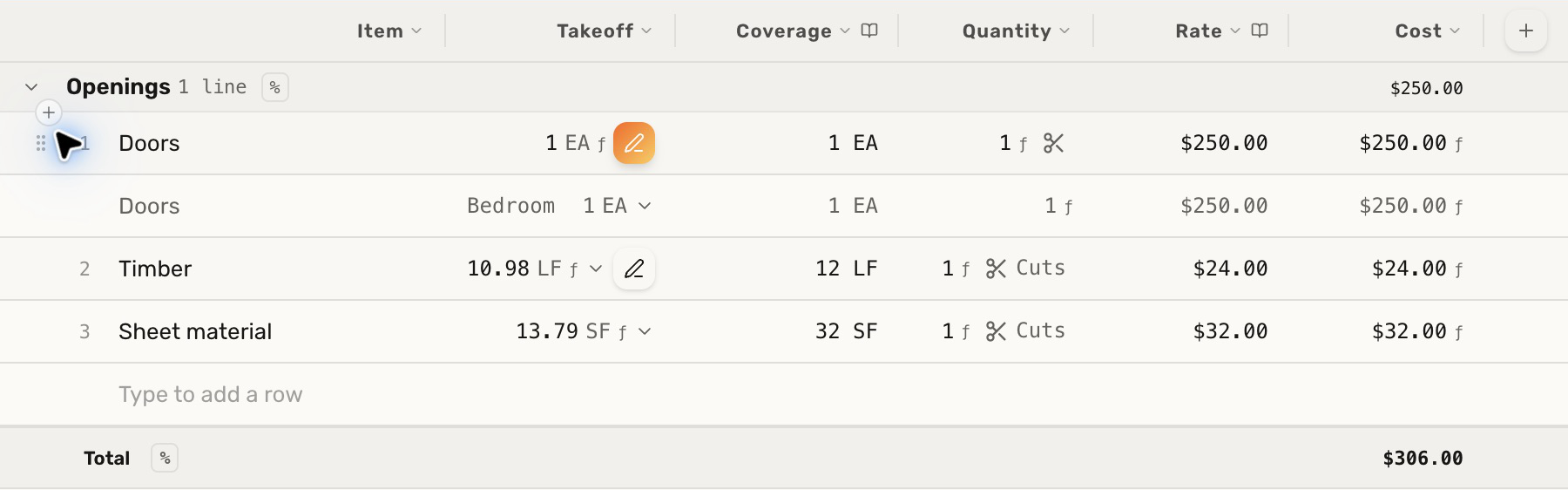
- Click the chevron beside the row number to expand the breakdown. Deta shows a sub-row for each property value represented in the matching marks.
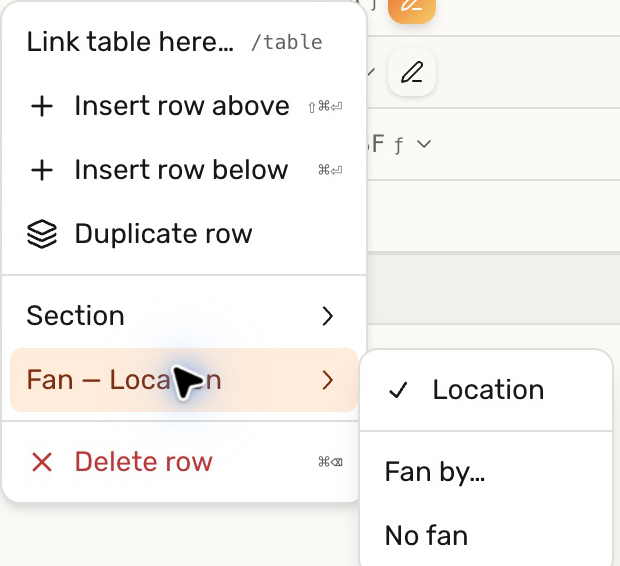
The parent remains the overall quantity. Expanding its breakdown does not add the same quantity to the total twice. To remove the breakdown, choose Fan → No fan.
Organize rows into sections
- Right-click an item cell and choose Section → New section…, or choose an existing section.
- Click the new section heading to rename it, then press Enter.
- Use the section chevron to collapse or expand its rows. Collapsed rows still contribute to totals.
Check your result
A row can show a Location breakdown while also belonging to a section such as Openings. Section subtotals use the columns that are set to sum into Total.
Troubleshooting
- The property is not offered: add it to a mark in this version, or use Fan by… with its exact name.
- A collapsed section still affects the total: collapse only hides rows. Adjust the rows or their takeoff scope to change the quantity.