How to edit an adopted cloud
Move an adopted cloud and choose whether to keep its connection to the comparison result.
Updated
Find the controls
Compare versions
Versions → Compare now
Before you start
Adopt a change in your cloud drawing first. Its red cloud is a markup linked to the comparison row.
Steps
1. Select the cloud
Choose Select (V) and click the red cloud. Its handles appear, and its comparison row highlights. That shows which result it came from.
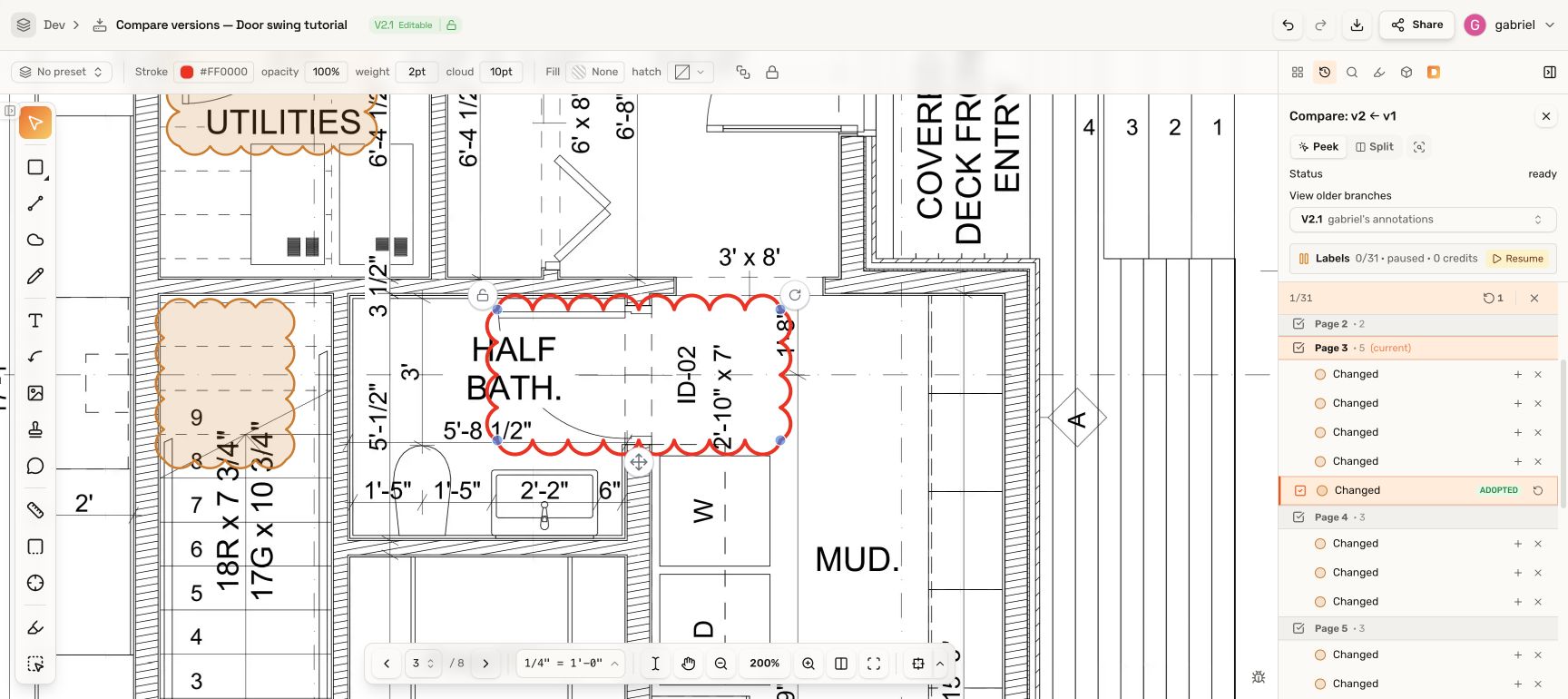
Use the properties bar to change its color or line weight. These changes keep the link.
2. Move or resize it
Drag the cloud or its handles. Deta shows this prompt:
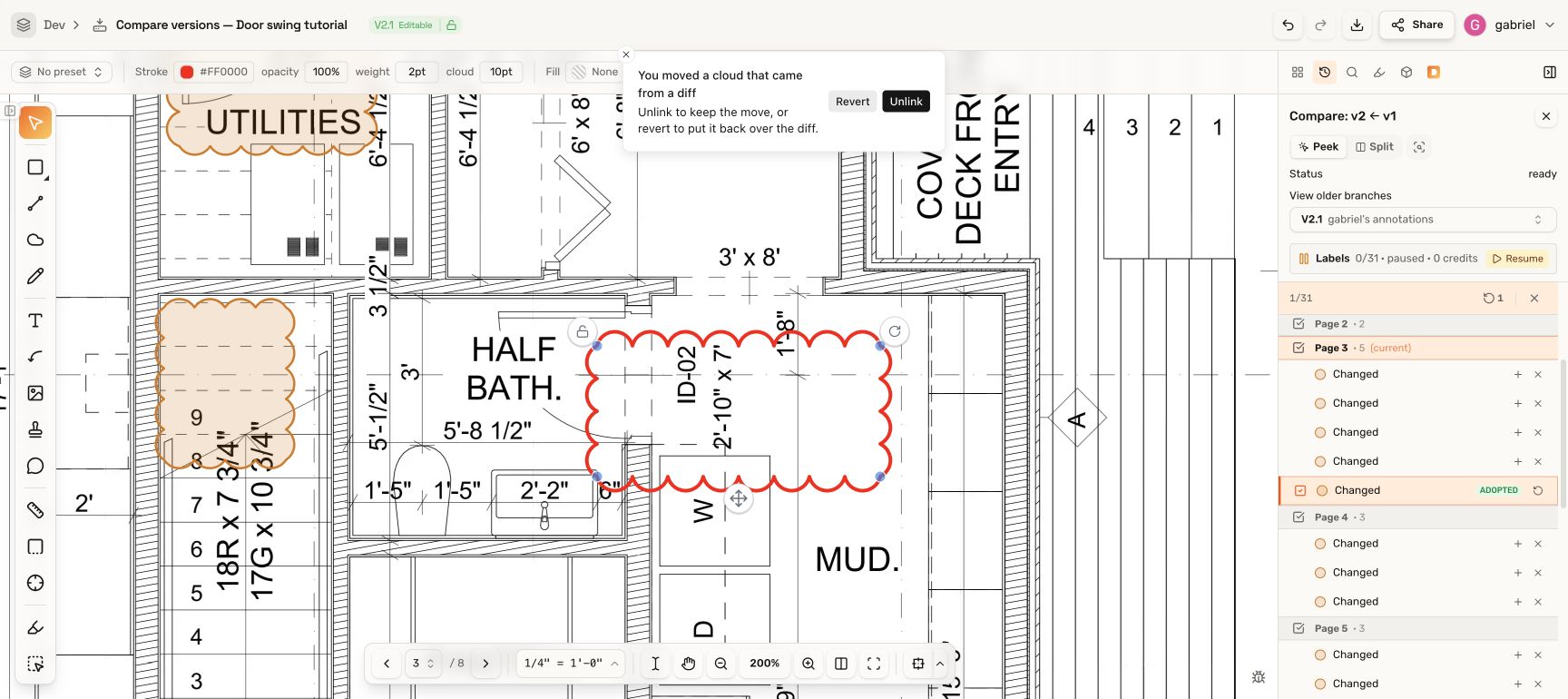
Choose the outcome you want:
- Revert: put the cloud back over the original change and keep it linked.
- Unlink: keep the edited cloud as independent markup. The comparison result becomes available for review again.
Clicking outside the prompt keeps both your edit and the link.
3. Check the result
After Unlink, the red markup stays, but its original row is no longer marked Adopted. Adopting that result again creates another cloud; it does not reconnect this one.
Troubleshooting
- Unlinked by mistake: use Ctrl+Z on Windows or Cmd+Z on Mac.
- Want to remove the cloud instead: use Restore on its adopted row.