How to add and adjust hatch fills
Fill a closed markup with a pattern, then adjust its spacing, angle, and opacity while keeping the drawing readable.
Updated
Find the controls
hatch
Select a closed markup → properties bar → hatch
Watch the walkthrough
Before you start
Draw a closed markup, such as a rectangle, circle, or closed polyline. Select it with V. Choose No preset if you want to change only this markup.
Steps
1. Choose a pattern
- Open hatch in the properties bar above the drawing.
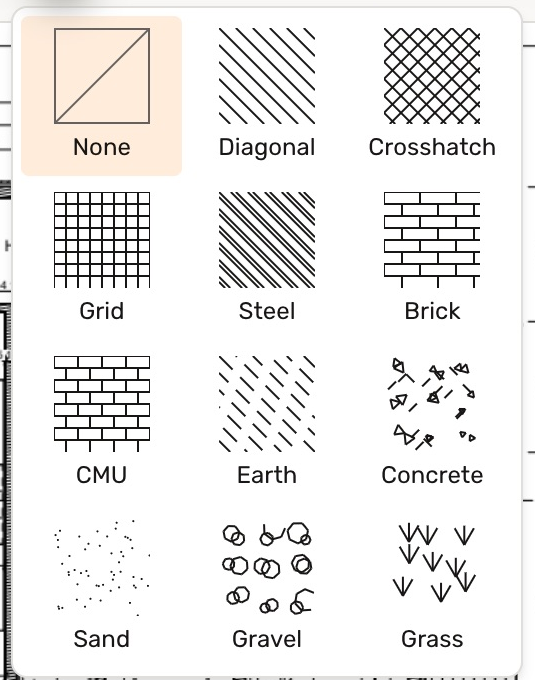
- Choose a pattern, such as Diagonal, Crosshatch, or Brick.

2. Adjust the pattern
Click a numeric value to type a new one.
- Spacing: increase it to spread the pattern out.
- Angle: turn the pattern inside the shape.
- Color, Weight, and Opacity: change the hatch lines. Lower opacity for a lighter pattern.
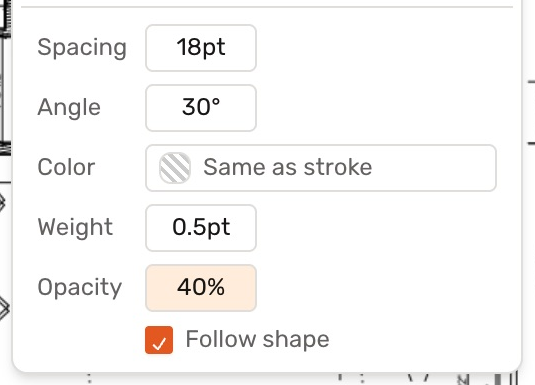
Follow shape anchors the pattern to the markup and turns it with the shape. Turn it off to align neighbouring patterns to the sheet.
3. Keep the plan readable
Set Fill → None to remove the solid background while keeping the hatch. To remove the hatch itself, reopen hatch and choose None.
Check your result
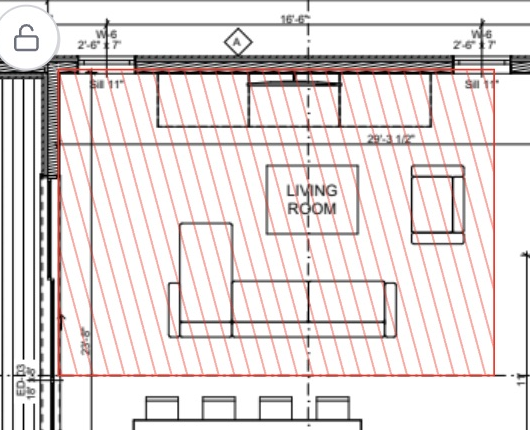
The hatch stays inside the markup. Here, wider spacing and lower opacity leave the furniture visible.
Troubleshooting
- No hatch control: select a closed shape that supports fills.
- The drawing is obscured: choose Fill → None, then lower hatch Opacity or increase Spacing.