How to reuse markup preset libraries
Save presets and fields together, add them to another drawing, and choose when to update them.
Updated
Find the controls
Preset libraries
Properties bar → Preset → Save new library… / Add library…
Before you start
Create the markup presets and fields you want to reuse. A preset library belongs to the workspace you save it in and stores markup names, appearance, and fields. Product prices and coverage belong in a separate product library.
Steps
Save the file's presets
- Select a markup or activate a drawing tool, then open
 Preset in the properties bar.
 - Click
 Save new library….
 - Choose Save to, enter a Library name, and click Save new library. This combines the file's presets and fields into one library and attaches it to this file.
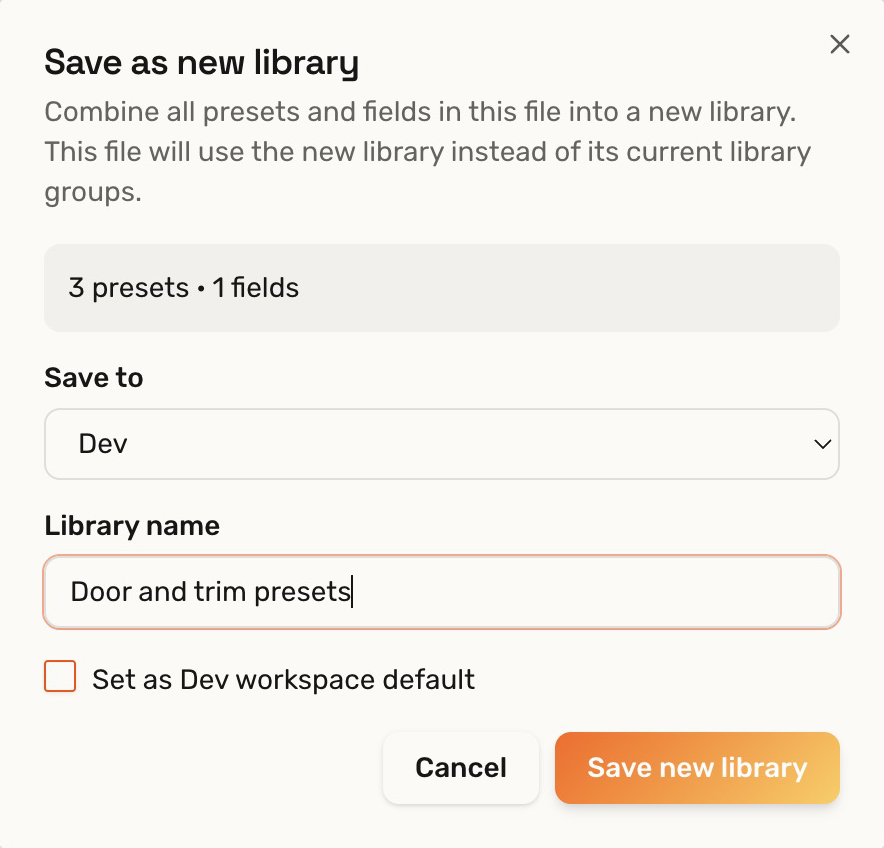
Use a library by default
A workspace can have one default preset library. New drawings in that workspace start with its presets and fields already loaded.
- When saving a new library: turn on Set as [workspace] workspace default before clicking Save new library.
- For an existing library: open the workspace’s
 Library → Presets, select the library, then click its Set as [workspace] workspace default star button.

Changing the default affects new drawings in that workspace. Existing drawings keep their presets; other workspaces and local PDFs keep their own settings.
Add it to another drawing
- Open the other drawing's preset picker and choose
 Add library….
 - Select the workspace and library, then click Add library.
- Choose a preset to use it for a markup. The library's name remains visible in the picker.
Later library changes are applied to the drawing when you choose Update from library in the library's actions menu.
Check your result
The receiving drawing offers the saved presets and their fields. Select one of its marks to see the assigned preset in the properties bar.
Troubleshooting
- The library is missing: select the workspace where it was saved.
- The drawing still has earlier settings: choose Update from library; saving a library change does not silently replace every drawing's settings.