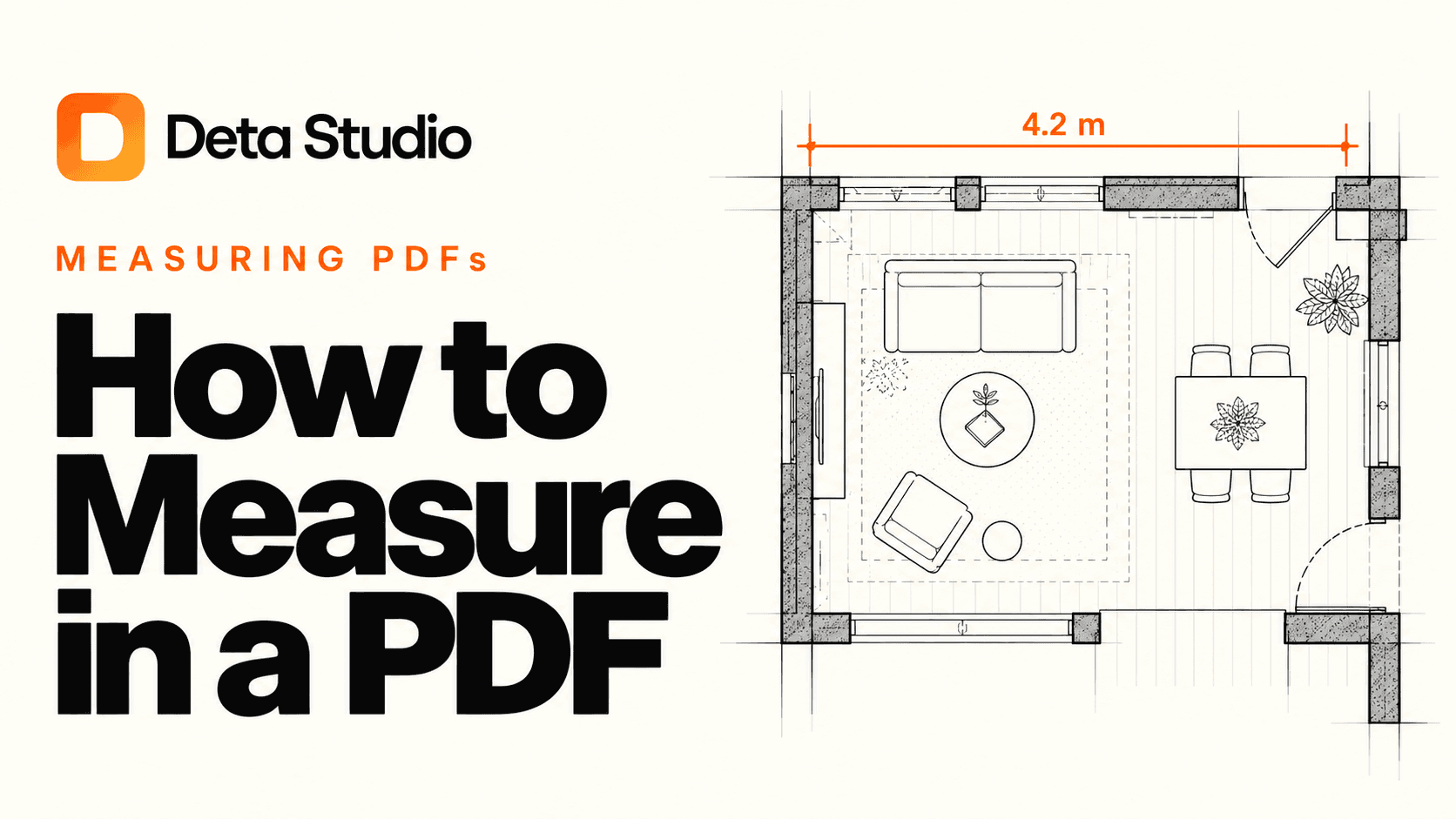
You're halfway through pricing a job when you notice the recess beside the kitchen has no width marked. You zoom in and check the next sheet, but the dimension isn't there either. You only need that one width to carry on. Instead, you're deciding whether to email the architect or leave another blank in your estimate.
An architect reviewing a consultant's PDF might need the gap between a column and a wall. On site, a subcontractor points to the plan and asks, “How wide is that bit?” The drawing is already in front of you, but the measurement you need is missing. Opening CAD or putting the question off until you're back at your desk feels like a lot of work for a quick check.
With Deta Studio, open your PDF, set the scale, and measure directly on the drawing. These four short videos show you how.
Set the PDF measurement scale first
Architects draw plans to scale so a building can fit on a sheet. You'll usually see a note such as 1/4" = 1'-0", meaning a quarter inch on the drawing represents one foot in the building. Or you might see 1:100, meaning 1 cm on the drawing represents 100 cm (1 metre) in real life.
If no scale is shown, you can set a custom scale using a known dimension. For example, use a wall labelled 10 feet: mark its two endpoints and enter that known length so Deta can work out the scale.
Check the scale beside the view you're measuring. A floor plan and an enlarged detail may use different scales. To apply a printed scale in Deta:
- Open Scale in the bottom viewer bar.
- Open Drawing Units, choose Metric or Imperial, then return to the scale list.
- Select a preset, or type a value such as 1:100 or 1/4" = 1'-0" in Find or add a scale.
- Select the matching scale, or choose Add scale for a new value.
Measure a span with a printed dimension to check your setup. If the numbers match, you can move on to the missing width. Zoom in to place the points accurately; zooming doesn't change the scale.
Watch: set the page scale.
Watch on YouTube · Read the page scale guide
Measure distance in a PDF
With the scale set, you can check that kitchen recess. Use its two edges as your start and end points:
- Select Dimension in the toolbar, or press M.
- Click the start point, then the end point.
- Read the length on the dimension label.
- Switch to Select (V) to adjust either endpoint if needed.
The dimension stays on the plan, so you can see what you measured when you return to the estimate. For the gap in a consultant's layout, use the face of the column and the face of the wall as your endpoints.
The video uses a bedroom width that's already labelled. Deta reads 12'-0", matching the printed 12-foot dimension, so you can see the scale check in practice.
Watch: measure a distance.
Watch on YouTube · Read the distance guide
If you work in feet and inches and the label looks wrong, open Scale → Drawing Units to choose the length format and precision. The units and precision guide explains how to check the equivalent scale when switching between Metric and Imperial.
Measure area and perimeter in a PDF
Further down the estimate, you need to price the floor finish. The room is an awkward shape, and its area isn't in the schedule. You could split it into rectangles and add them up. In Deta, you can trace the room's boundary to get its area, then use the same outline for the perimeter when you price skirting or edge trim.
Measure floor or room area
- Select Area (A).
- Click each corner around the region in order. For a room's floor area, follow the inside faces of the walls.
- Click the first point again, or press Enter, to close the shape. On touch devices, use the drawing confirmation control.
- Select the markup and choose Display → Area.
The outline stays visible on the plan so you can check what you've included. If you missed a corner, select the shape and move that point into place without tracing the whole room again.
Watch: measure an area.
Watch on YouTube · Read the area guide
Read the perimeter of the same boundary
For the skirting, select the outline you already drew and choose Display → Perim. Choose Both to show the area and perimeter together.
A room measuring 5 m by 4 m has a floor area of 20 m² and a perimeter of 18 m. The perimeter includes the whole closed boundary, so account for openings separately when working out your skirting quantity. Use Dimension if you only need the length of one wall.
Watch: measure a perimeter.
Watch on YouTube · Read the perimeter guide
Can I measure in a PDF for free?
Yes, you can get started in Deta Studio for free.
Can I use a PDF measure tool on Android or my phone?
Yes. Open Deta Studio in your phone's browser and log into the account where your drawings are saved. You can open the plan and check a measurement while you're on site.